Two-factor authentication (2FA)
Two-factor authentication (2FA) adds an extra verification step when signing in. It helps protect your account if your password is compromised.
Written By Chatseeker
Last updated 6 months ago
Why 2FA matters
With 2FA enabled, signing in requires both your password and a time-based code from an authenticator app (or a recovery code if you cannot access your authenticator).
View 2FA status for team members
Owners can review the 2FA status of employees from the team overview.
Open
Employees.Check the
2FAcolumn forEnabledorDisabled.

Enable 2FA for your own account
Open the top-bar user menu and click
Settings.Open the
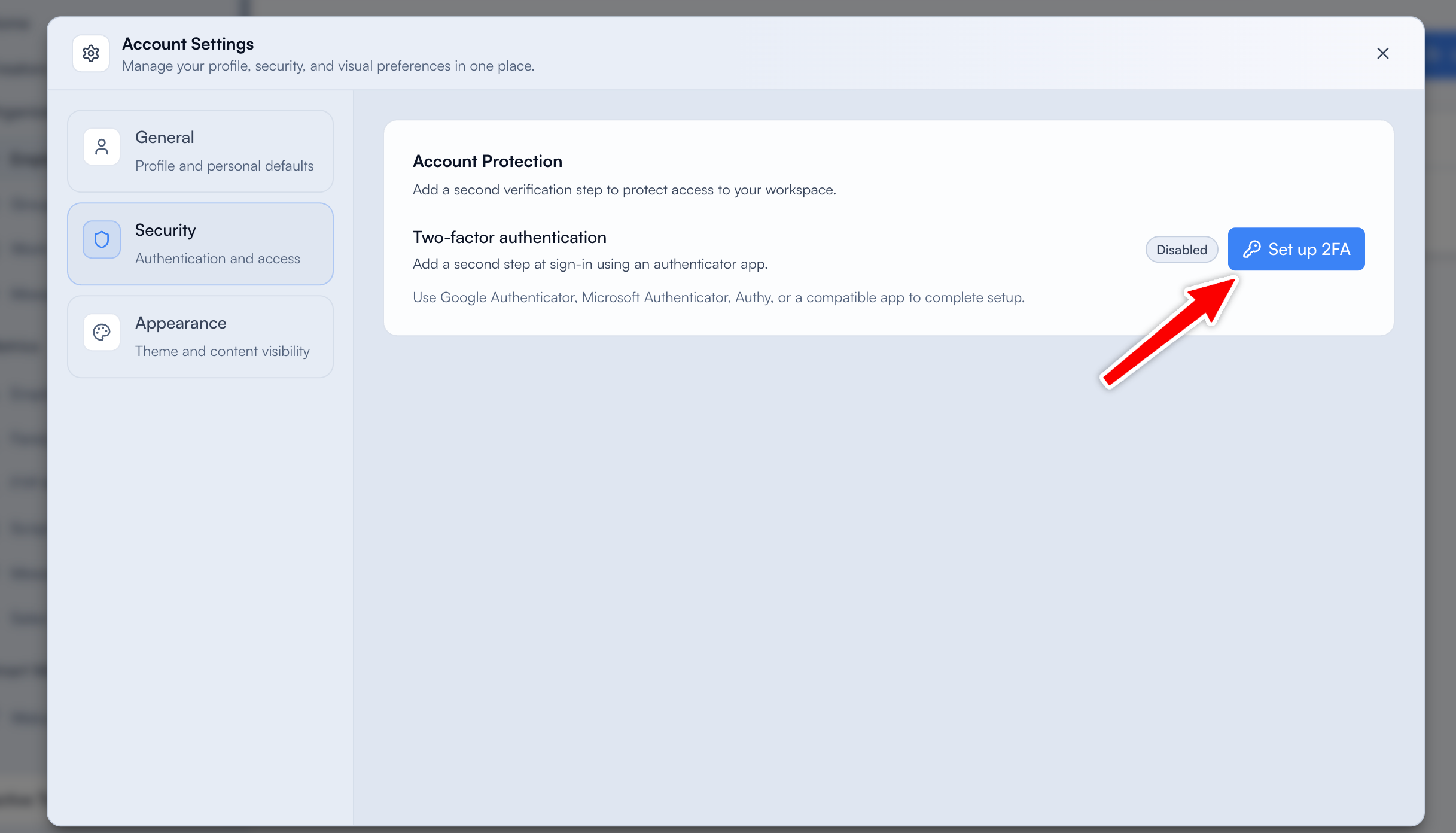
Securitytab.In
Two-Factor Authentication, clickSet Up 2FA.In
Set Up Two-Factor Authentication:Scan
Authenticator QR Code(recommended), or copy theManual Setup SecretusingCopy.Save your
Recovery CodesusingDownloadorCopy All.
Under
Confirm Setup, enter the 6-digit code from your authenticator app and clickConfirm and Enable.
Save and use recovery codes
Recovery codes are a backup method to access your account if you lose access to your authenticator app.
Save them during setup. The full list is shown only at setup time.
Each recovery code can be used once.
Store them securely (for example in a password manager).
Use a recovery code to log in
On the login 2FA screen, enter a recovery code in
Verification Code(the input accepts "Authenticator code or recovery code").Click
Verify.
Disable 2FA
Open
Settings->Security.Click
Disable 2FA.In
Disable Two-Factor Authentication, enterPassword.Click
Disable 2FA(orCancelto abort).
Notes
Setup confirmation requires a 6-digit authenticator app code.
If you cannot access your authenticator app, use a recovery code to sign in.
Was this helpful?
Still need help? Ask the team