Employee Metrics detail
The Employee Detail View shows exactly how one team member performed over time. Every message, every PPV, every minute online, broken down into charts and a detailed hourly or daily table.
Written By Chatseeker
Last updated 6 months ago
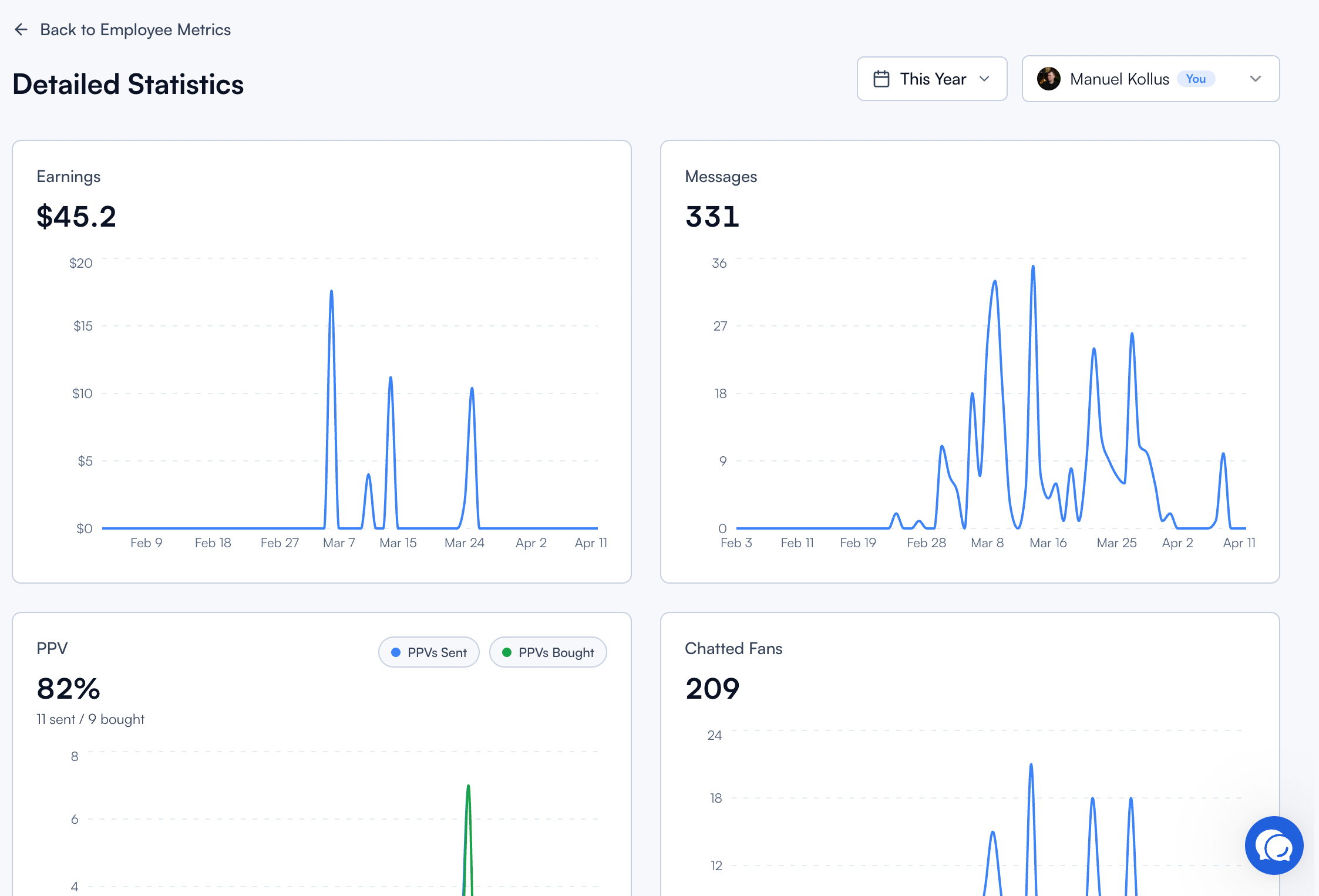
This is where you go to coach, reward, and optimize. Use it to spot your top chatters, identify patterns behind strong results, and find the coaching moments that turn average chatters into great ones.
How to use it
Use the date range picker to set the period you want to review.
The view automatically adapts to your selection:
Single day: charts and the table show hourly behavior.
Multiple days: the view aggregates by day.
Review the charts to spot trends and peaks.
Review the table to validate those patterns with exact values and timestamps.
Metrics explained
Each chart and column focuses on one dimension of employee performance. Combine them to get the full picture.
Purchase rate
Purchase rate is calculated as PPV bought divided by PPV sent, shown as a percentage across the selected range. It's one of the most important indicators of chatter quality. A high volume of PPVs sent with a low purchase rate means the employee is pushing offers too aggressively or at the wrong moment. A high purchase rate with strong volume means they're nailing timing and fit.
Reading the data effectively
Start with Revenue and Purchase Rate. These are the two most important outcome metrics. Everything else explains the "why" behind them.
Use Messages and Keystrokes together. High message count with low keystrokes can mean heavy script usage. That's not automatically bad, but worth checking against the purchase rate.
Cross-check with Online Time. Revenue per online hour tells you how efficiently an employee converts their shift into results.
Zoom into a single day when you want to understand a specific spike or dip in performance. The hourly breakdown often reveals patterns like productive hours or slow periods.
Was this helpful?
Still need help? Ask the team