Script Metrics (summary)
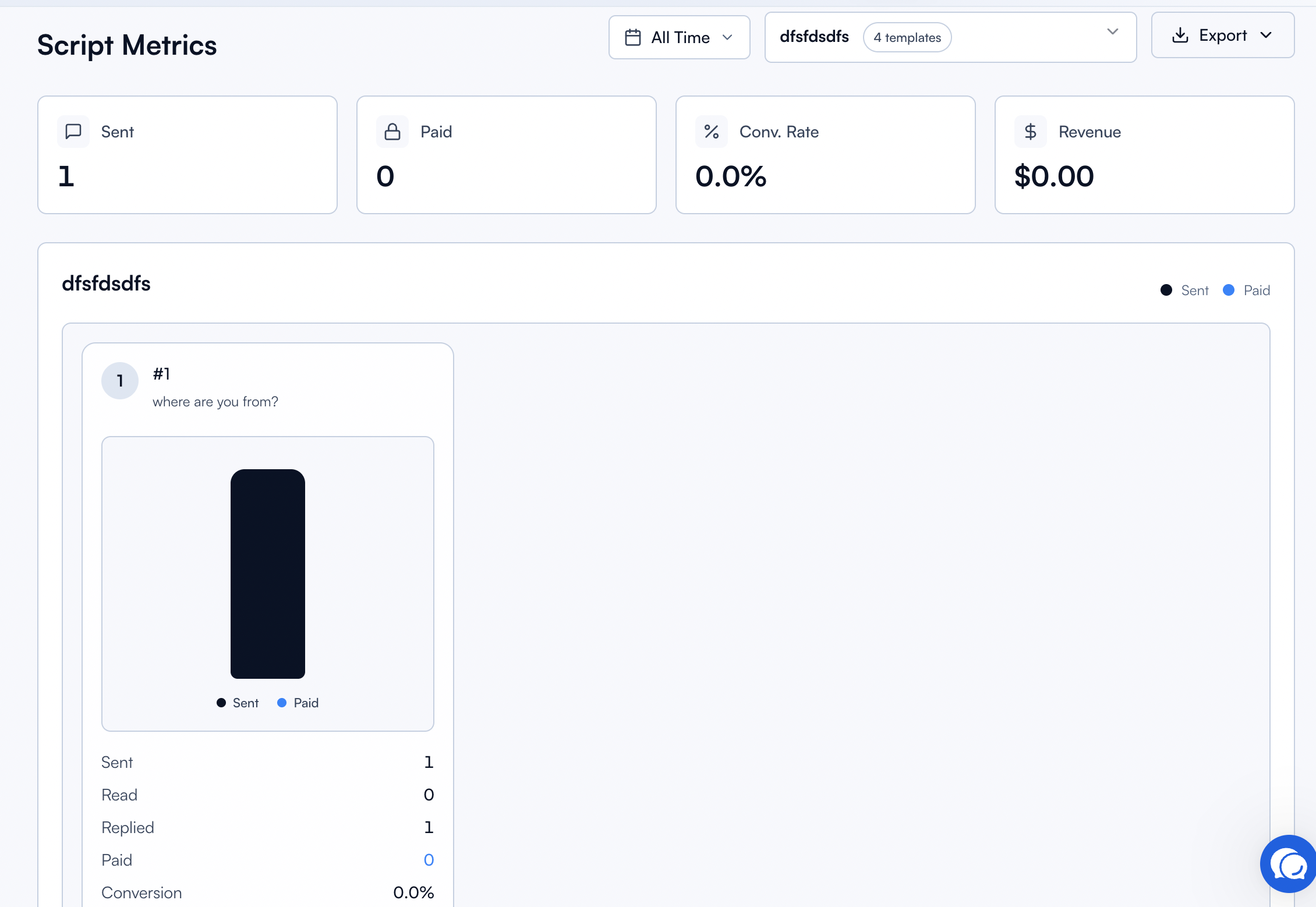
Script Metrics shows you exactly how your script templates perform over time. Instead of guessing which message opens the door and which one closes the sale, you see the full picture: how many fans were sent each template, how many read it, how many replied, and how many actually bought.
Written By Chatseeker
Last updated 6 months ago
Why tracking your scripts matters
Scripts are the backbone of any scaled chatting operation, but without tracking, you can't tell which ones actually work. Script Metrics turns every template into a measurable funnel so you can make data-driven decisions instead of relying on gut feeling.
Here's what you get out of it:
See how each funnel converts. Find out which script sequence drives the most revenue and which one loses fans along the way.
Spot drop-off points. If 500 fans receive step one but only 50 reach step three, you know exactly where the flow breaks and which step to rewrite.
Identify winning patterns. Over time, top-performing scripts reveal patterns you can replicate across other templates and creators.
Compare templates fairly. Every script is measured on the same metrics (messages sent, read, replied, purchased, revenue, conversion rate), so ranking them is straightforward.
Coach your team with data. Instead of "this script isn't working", you can show chatters exactly where fans disengage and why.
Before you start
Make sure you're logged in to Chatseeker.
A creator must be selected.
At least one script must exist in Scripts.
Using Script Metrics
Open Script Metrics.
Select a date range for the period you want to analyze.
Select a script to drill into its performance.
Review the metrics per template and per step to see where fans progress, drop off, or convert.
Metrics you'll see
Notes
If there's no activity in your selected range, the UI shows "No data". Try widening the date range or checking whether the script was active during that period.
For a full operational guide on setting up scripts, see the Scripts section.
Was this helpful?
Still need help? Ask the team