AI Translator
Language should never slow your team down. AI Translator automatically translates incoming fan messages and helps you compose replies in the right language. It works directly inside the chat, so your team can handle conversations in any supported language without switching tools.
Written By Chatseeker
Last updated 6 months ago
Setting up AI Translator
Open AI Translator from the creator settings.
Under AI Translator, toggle it to Enabled.
If AI Translator is disabled, no translations will be processed for that creator. All messages will be shown in their original language.

Configure for a specific fan
You can customize translation settings per fan to match their language.
Open Chats and select a fan conversation.
In the chat header, click the AI button.
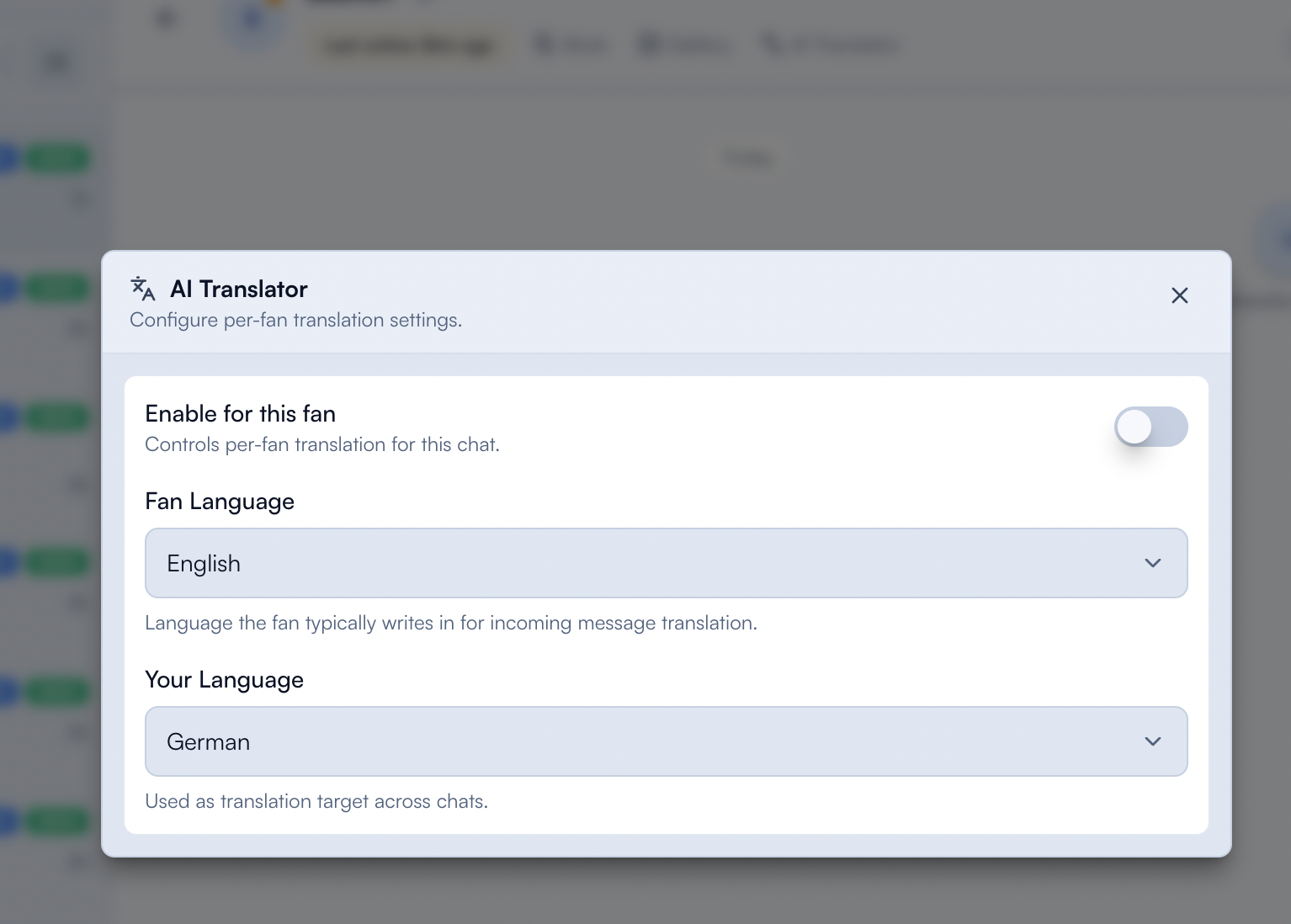
In the AI Translator modal:
Toggle Enable for this fan on.
Set Fan Language to the language the fan typically writes in.
Set Your Language to the language your team uses for replies.
If both languages are the same, messages stay in their original form.
Using AI Translate Compose
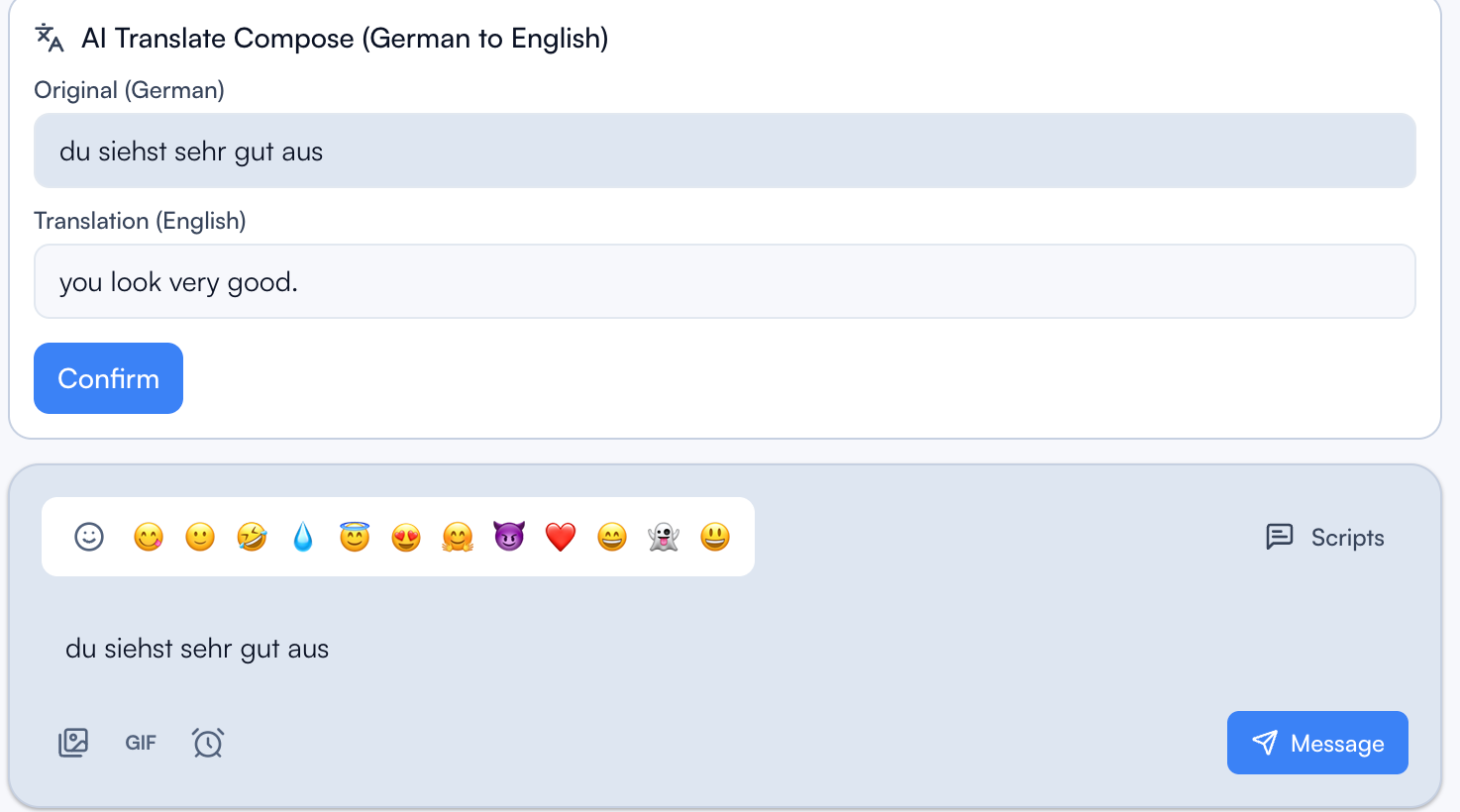
Once enabled, the composer shows an AI Translate Compose indicator with the active language pair (e.g. "German to English").
Type your message in the composer as usual.
Review the generated translation.
Click Confirm to use the translated draft, then send.
Supported languages
AI Translator currently supports 28 languages:
Good to know
AI Translator must be enabled globally for a creator before it can be activated for individual fans.
Translation quality works best when the correct fan language is set. If a fan switches languages mid-conversation, you can update the setting at any time.
Was this helpful?
Still need help? Ask the team