Revenue Attribution & Assignments
Knowing who closed a sale is just as important as knowing that a sale happened. Chatseeker attributes revenue and outcomes to the team members who earned them, so Employee Metrics reflects real contribution and your top performers get recognized accurately.
Written By Chatseeker
Last updated 6 months ago
How attribution works
Chatseeker handles most attribution automatically. Tips and sales (PPVs, subscriptions, and other revenue events) are assigned to the responsible chatter without any manual action, based on recent chat activity.
On average, attribution takes 3 to 5 minutes to appear in Employee Metrics after the event happens. If you don't see a sale attributed right away, wait a few minutes and refresh.
Which day is the revenue counted on?
Attributed revenue always appears in Employee Metrics on the day the fan made the purchase, not the day the PPV was originally sent. This keeps reporting consistent with the actual transaction date.
When to manually assign
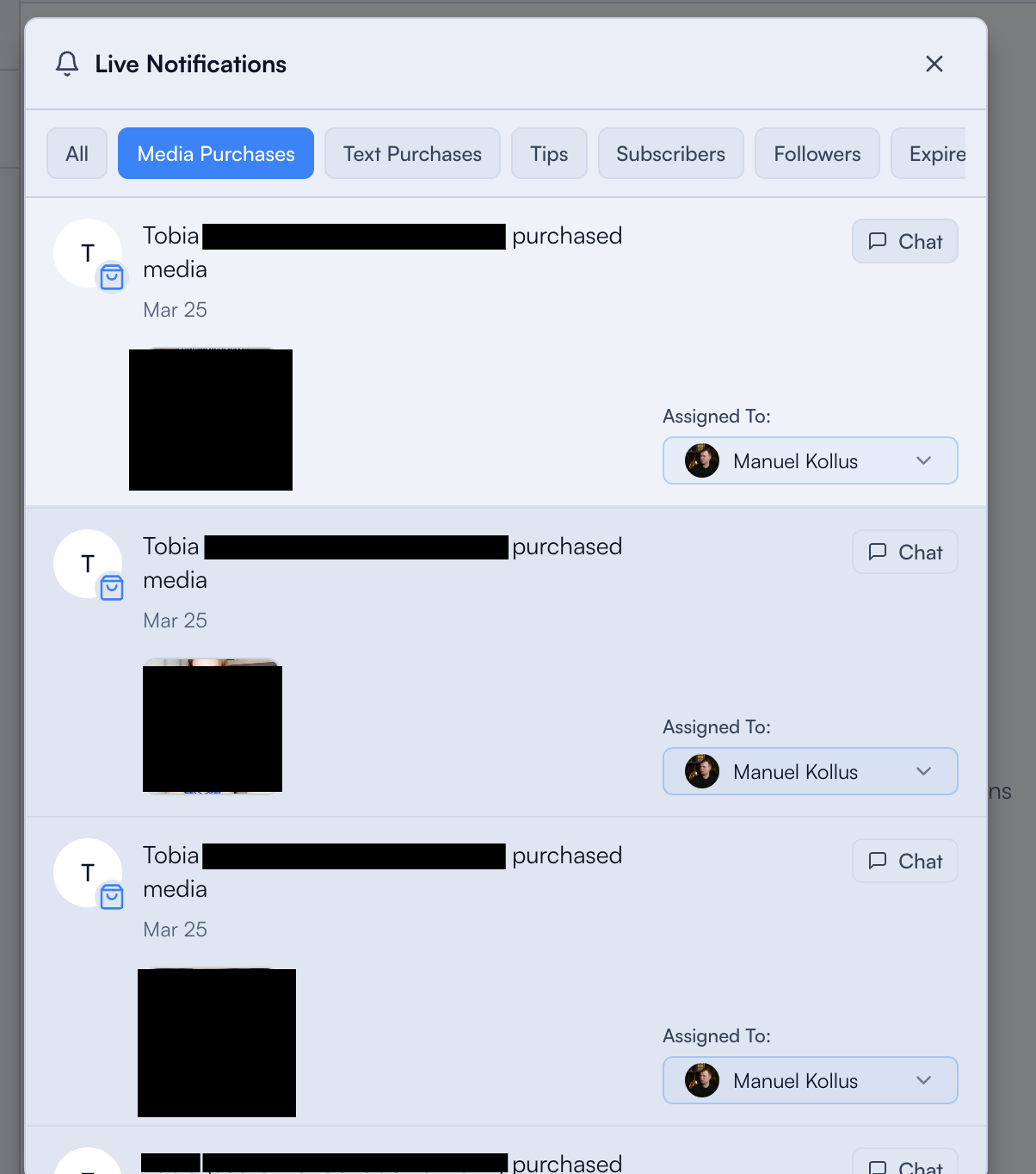
Sometimes attribution needs a manual adjustment, for example when the wrong chatter is credited or when Chatseeker couldn't automatically determine who closed the sale. You can fix this directly from the Notifications panel inside Chats.
Before you start
Make sure you're logged in to Chatseeker.
A creator must be selected.
Assigning revenue manually
Open Chats.
Open Notifications.
Find the revenue-related notification you want to update.
Under Assigned To:, click the dropdown (Assign to...) and choose the correct chatter.
Confirm the assignment is saved. If it fails, retry and refresh the page.
Notes
Changing an assignment updates how Employee Metrics reflects Revenue and PPV attribution for both chatters involved.
The current assignment is always visible on applicable notifications as Assigned To:.
Automatic attribution covers the majority of cases. Manual assignment is mainly for edge cases and corrections.
Was this helpful?
Still need help? Ask the team