Invite a team member and join a workspace
Written By Chatseeker
Last updated 6 months ago
Chatseeker uses an invite link to add employees to your workspace. Treat the invite link as sensitive: anyone who has the link can open the registration page for your workspace.
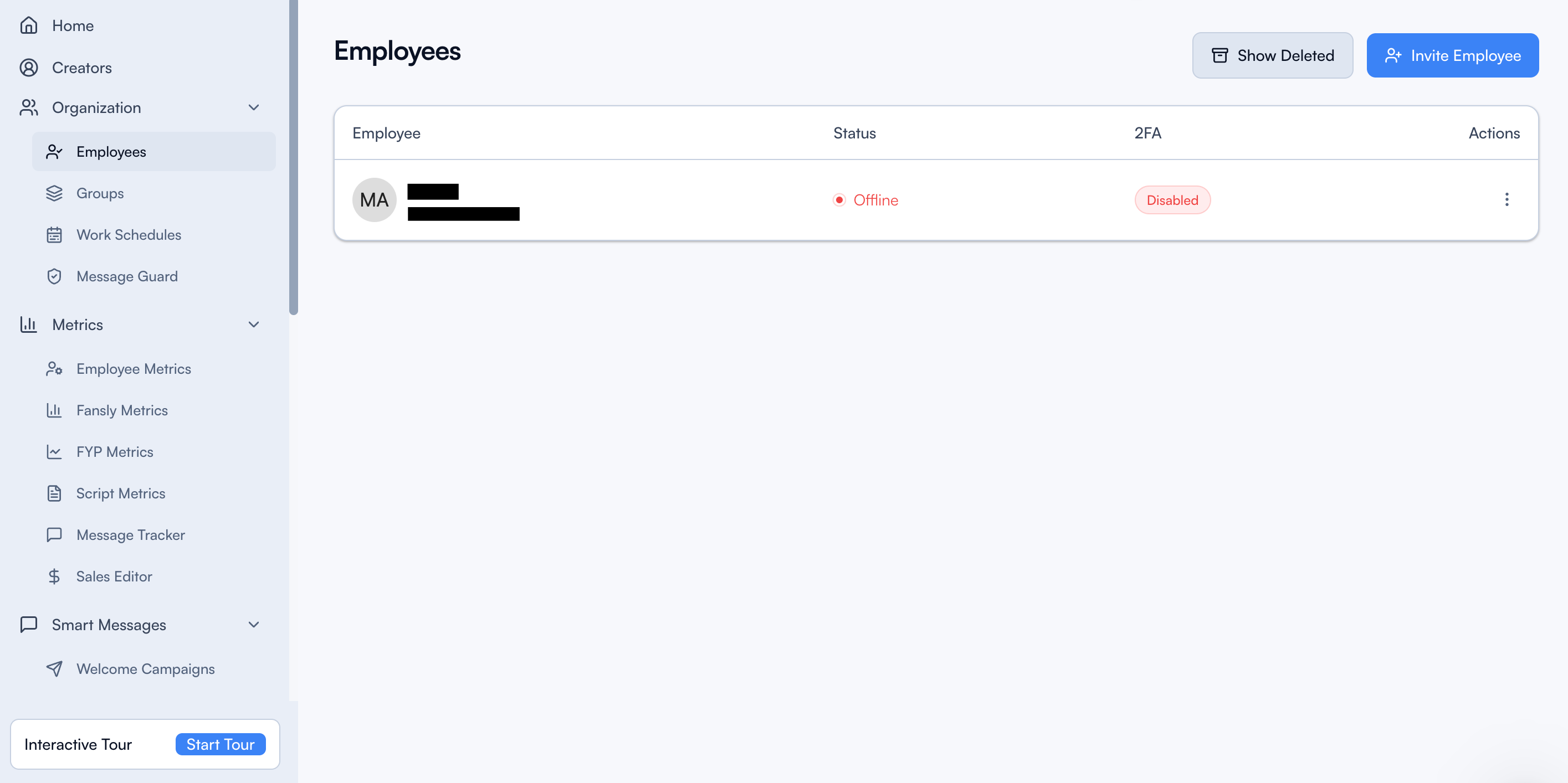
Create and share an invite link
Open
Employees.Click
Invite Employee.In the modal, click
Copy Link.Send the link to your team member.
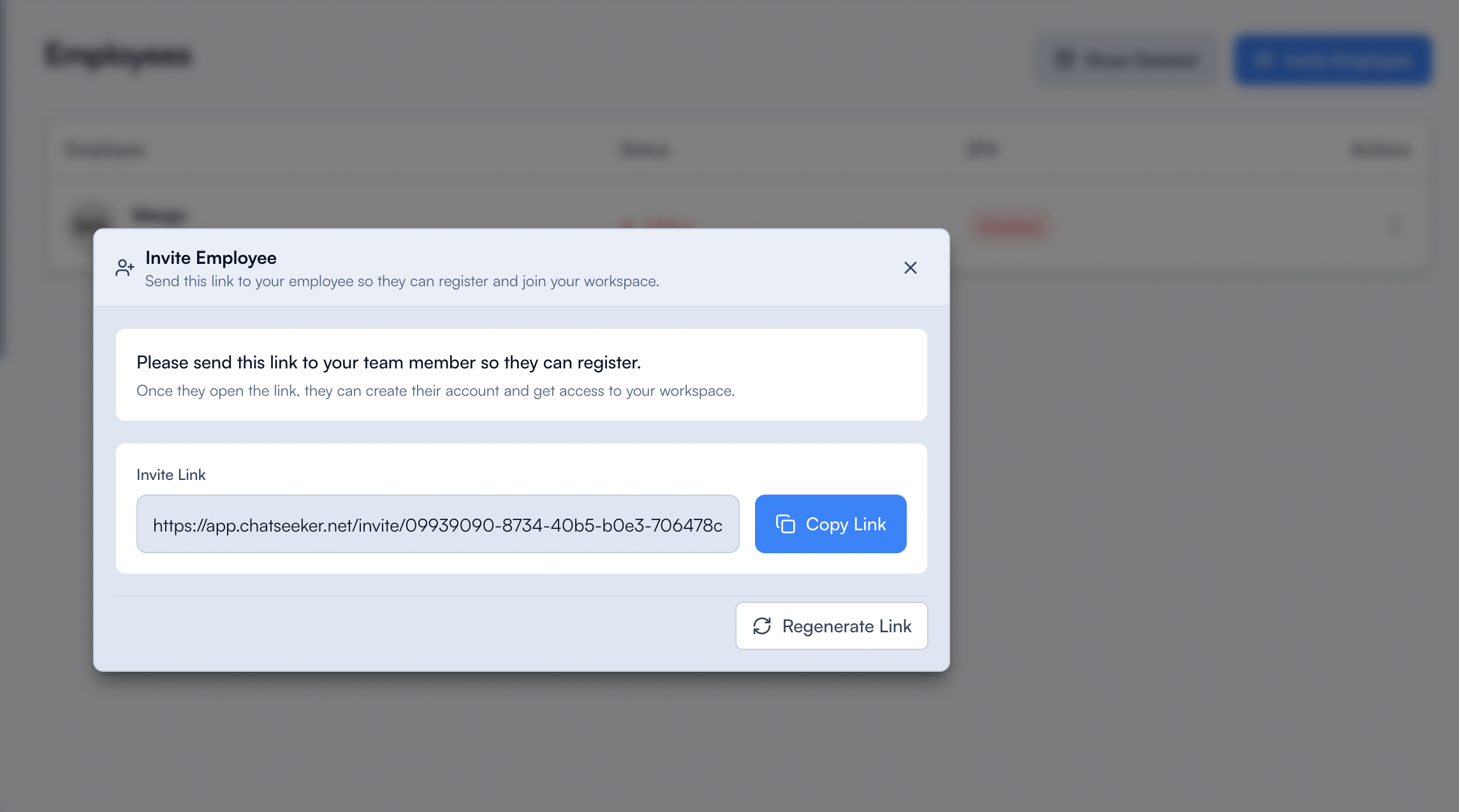
Regenerate an invite link
If you need to replace the invite link, you can generate a new one.
Open
Employees.Click
Invite Employee.Click
Regenerate Link.Confirm
Regenerate Link.
Important: when you regenerate, the previous invite link becomes invalid. Anyone with the old link will need the new link to register.
[Screenshot: Regenerate Invite Link confirmation dialog]
Employee: Create your account (Join Team)
Open the invite link in your browser.
Enter
Name.Enter
E-Mail Address.Enter
Password.Click
Join Team.
After the account is created, you can log in using the email and password you just set.
Troubleshooting
Invalid link format
Make sure you are using the full invite link you received. If the link looks incomplete, request a new link from the owner.
Expired or invalid invite link
Ask the owner to generate a new invite link (for example, they may have clicked Regenerate Link).
Too many attempts
Wait a short time and try again.
Network error
Check your internet connection and retry.
Was this helpful?
Still need help? Ask the team