Account settings
Your profile information and visual preferences are managed directly in the web dashboard through Account Settings. This is where you control how you appear to your team and how the dashboard looks while you work.
Written By Chatseeker
Last updated 6 months ago
Opening Account Settings
Click your profile menu in the top bar.
Click Settings.
From here you can navigate between the General and Appearance tabs.
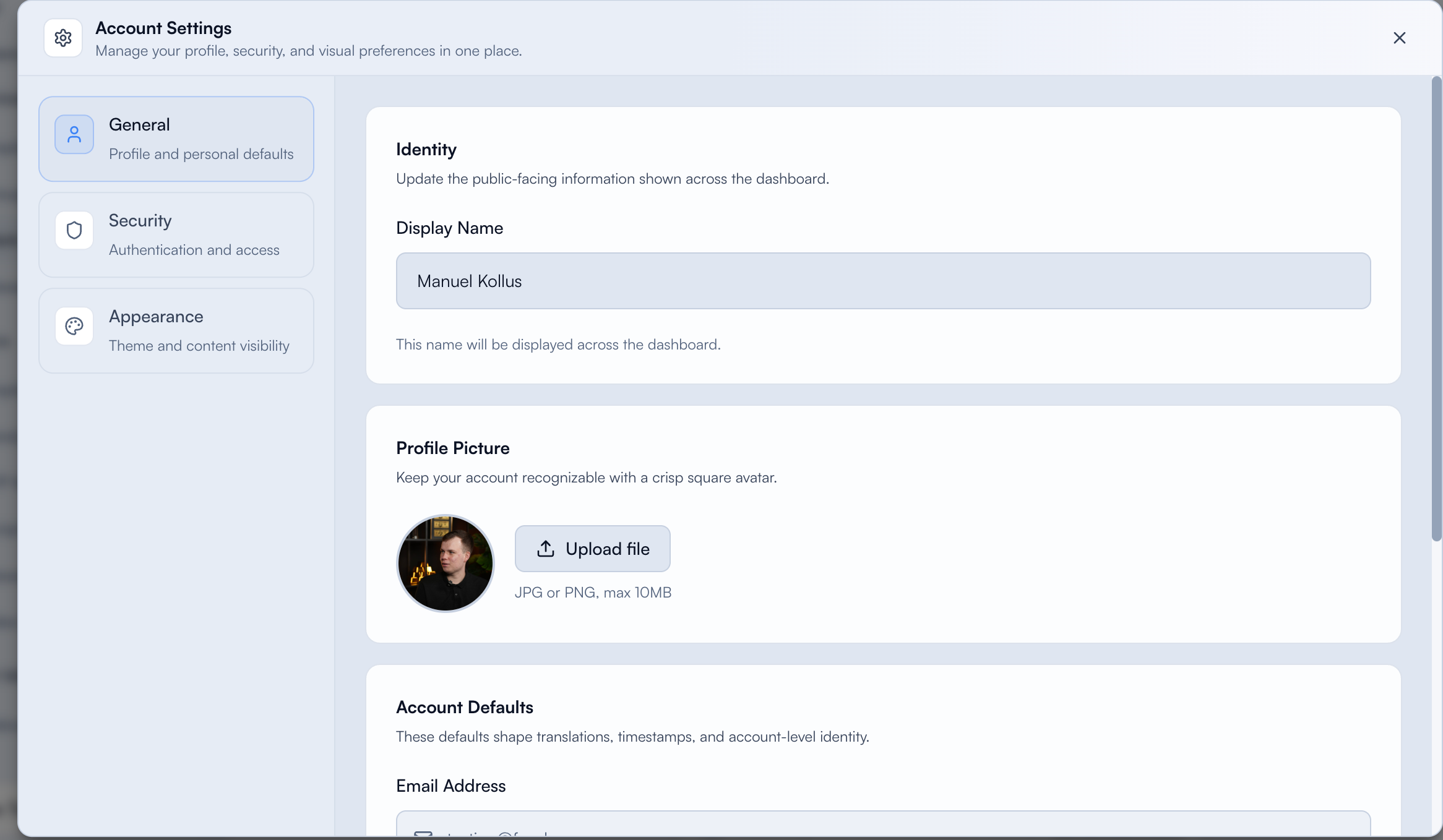
Display Name
Your Display Name is what your team sees across the dashboard. It must be unique within your workspace, so names that are already in use can't be selected.
Open Settings from the profile menu.
Open the General tab.
Under Identity, update your Display Name.
Click outside the field to save. The setting is saved automatically when the input loses focus.
As you type, you'll see live availability feedback:
Profile Picture
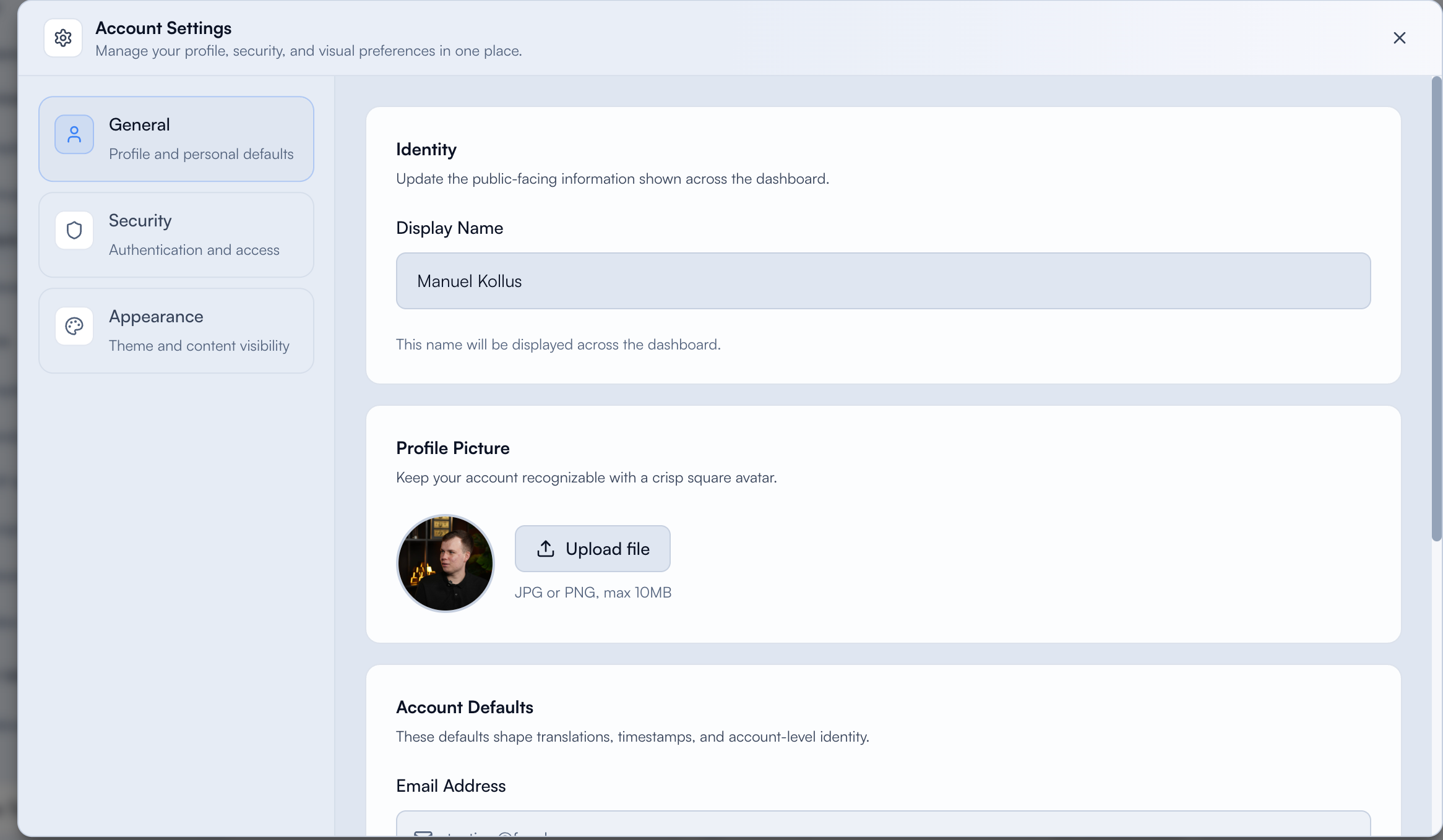
Your avatar appears next to your name across the dashboard, making it easier for teammates to recognize you at a glance.
Open Settings from the profile menu.
Open the General tab.
In Profile Picture, upload your avatar image.
Theme
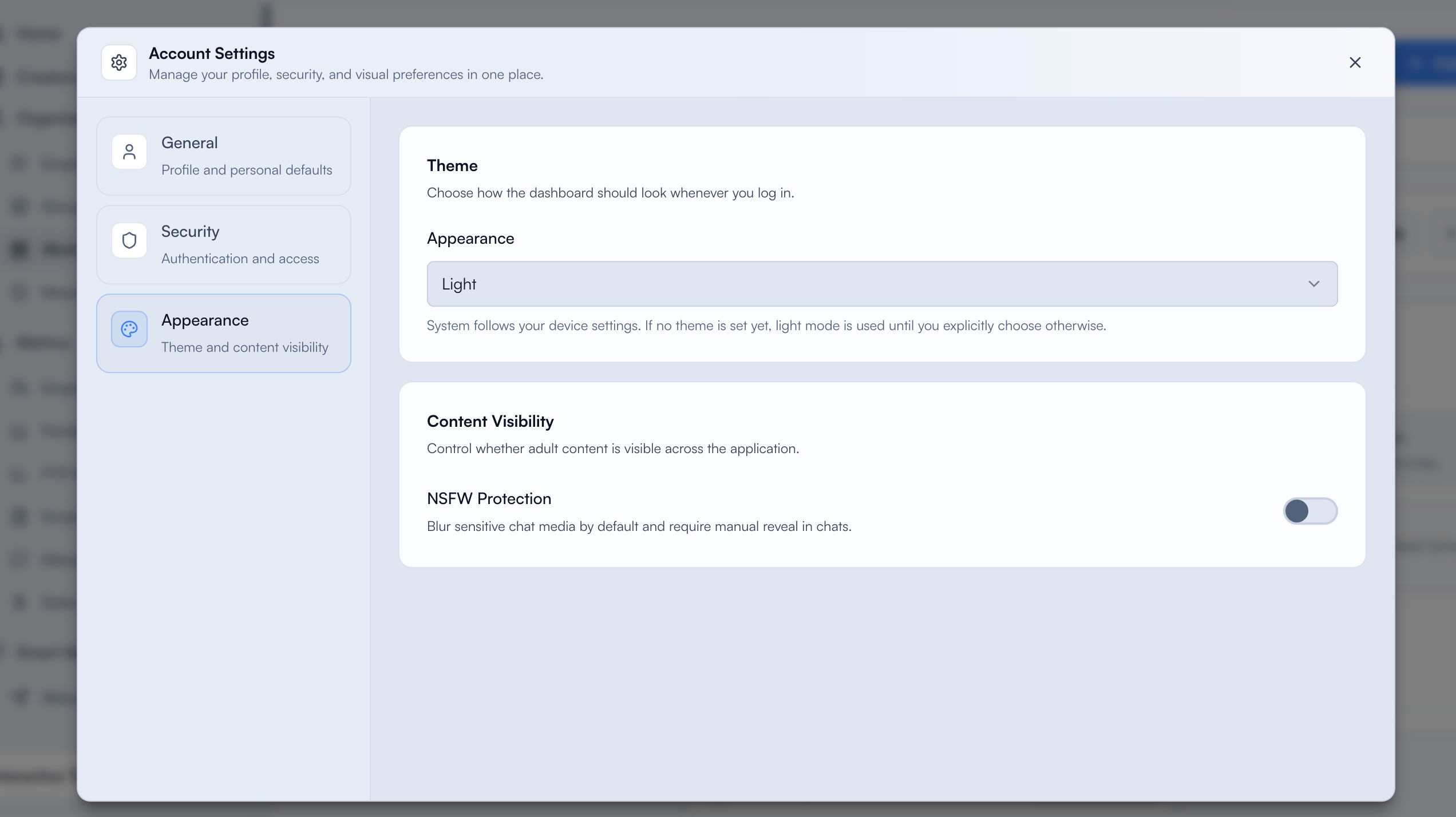
Match the dashboard to your preference with three theme options.
Open Settings from the profile menu.
Open the Appearance tab.
Under Theme, choose one of the following:
Was this helpful?
Still need help? Ask the team