Message Tracker
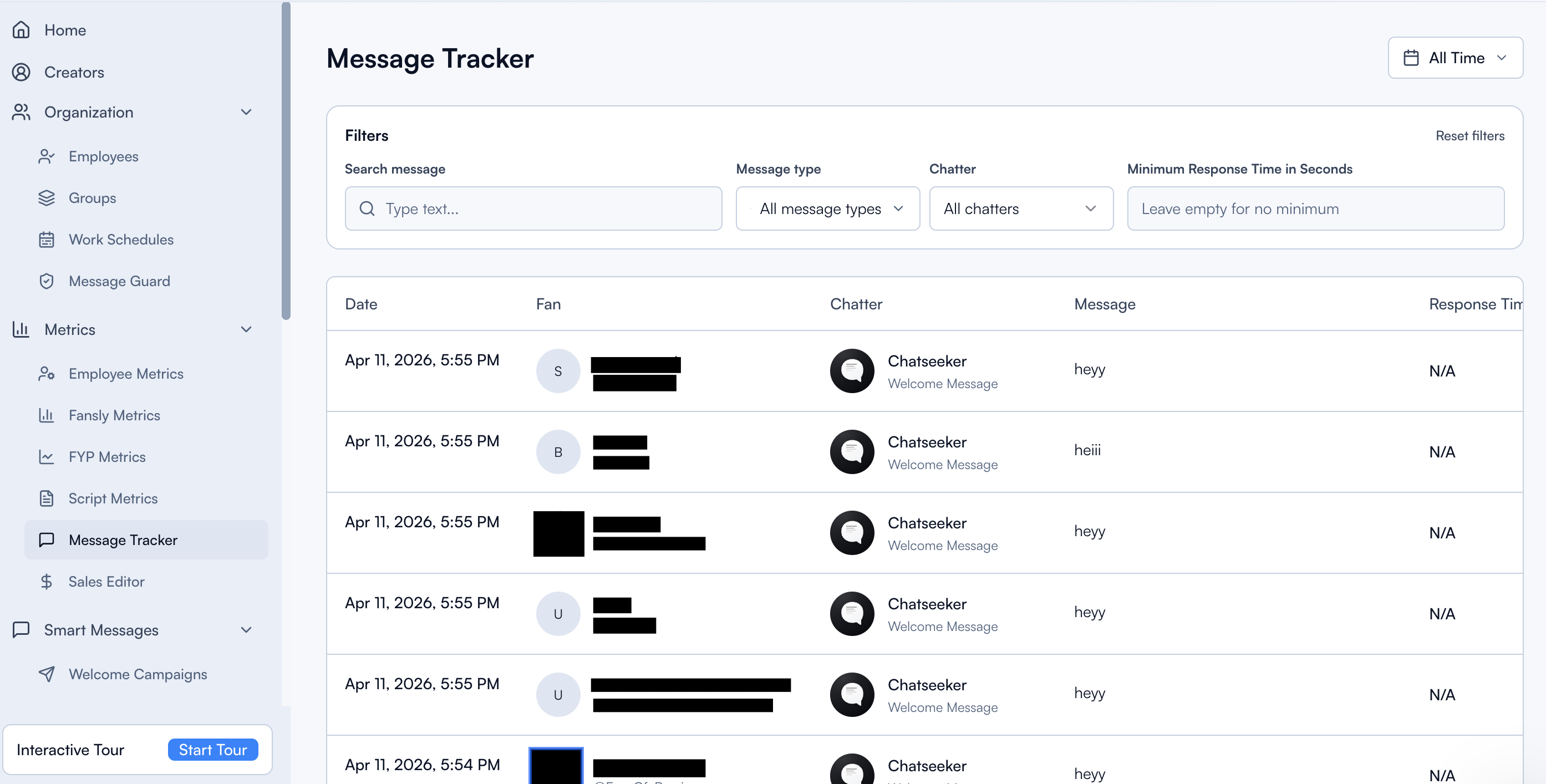
Message Tracker gives you full visibility into every message sent through Chatseeker. Review what was sent, who sent it, and when. This is your go-to tool for auditing team performance, reviewing campaign output, and tracing specific messages when you need answers fast.
Written By Chatseeker
Last updated 6 months ago
Using Message Tracker
Open Message Tracker.
Set your date range using the date picker at the top.
Apply Filters to narrow down the results:
Message Types
Chatter filter (filter by a specific team member)
Search message (find a specific phrase or template)
Click Reset filters to return to defaults at any time.
Click any message row to jump back to the related chat context.
Message types
Messages are categorized so you can filter by source:
Attribution in chat history
Every message is attributed so you always know where it came from:
Notes
Use Search message to quickly locate specific phrases, scripts, or templates.
For a full operational view, combine Message Tracker with Script Metrics to see not just what was sent, but how each template performs.
Important: what gets tracked
Message Tracker only records messages that are sent through the Chatseeker Chat UI. Messages sent directly via the Fansly UI outside of Chatseeker will not appear in the tracker. To get complete visibility and accurate team attribution, make sure your team always works through the Chatseeker Chat UI.
Was this helpful?
Still need help? Ask the team