Message Guard
`Message Guard` helps protect your chats by blocking messages that match unwanted content patterns. This reduces operational risk and keeps your team aligned with your rules.
Written By Chatseeker
Last updated 6 months ago
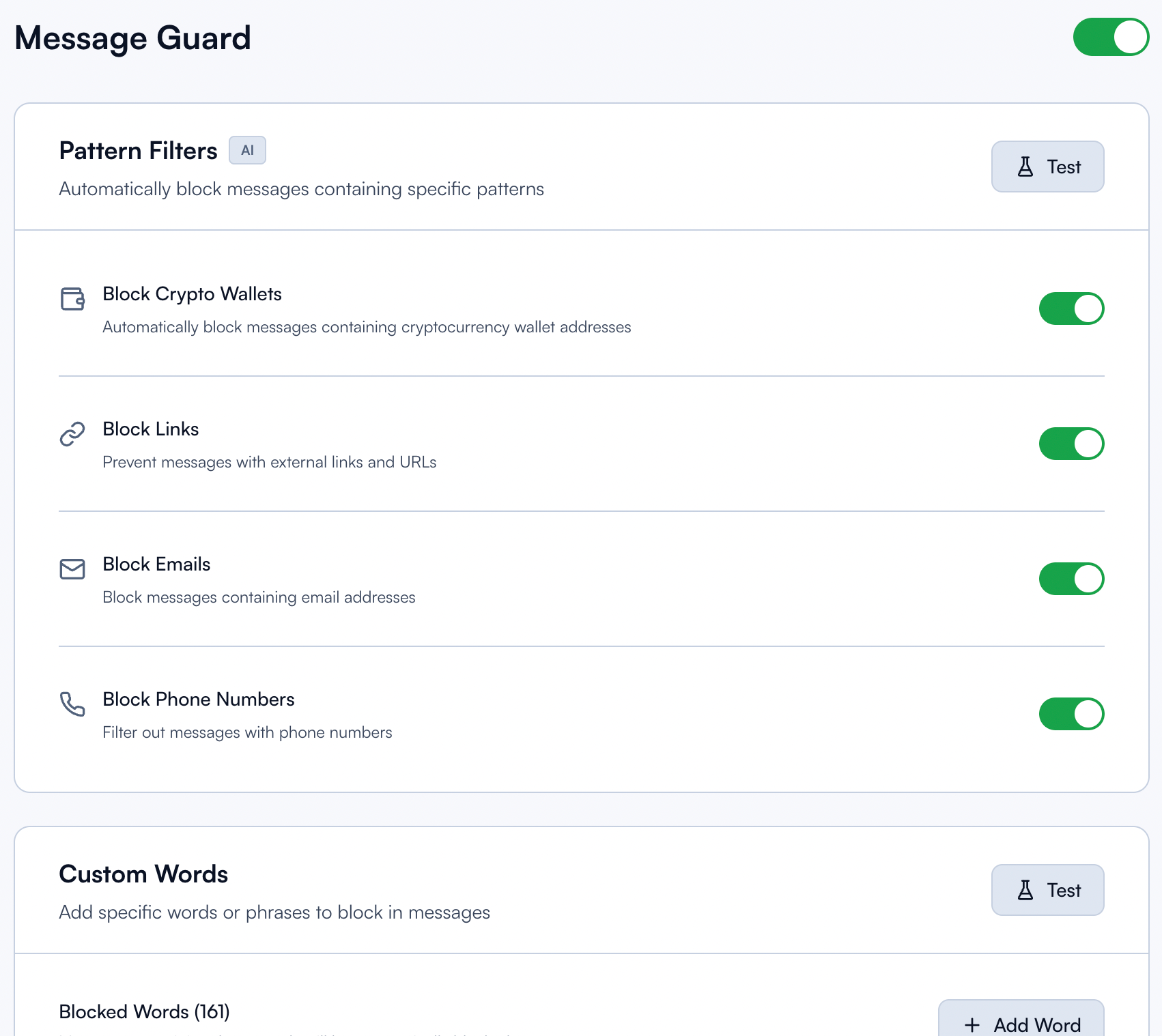
Step-by-step
Enable Message Guard
Open
Message Guard.Enable the master toggle.
If Message Guard is disabled, you can also click Enable Message Guard.
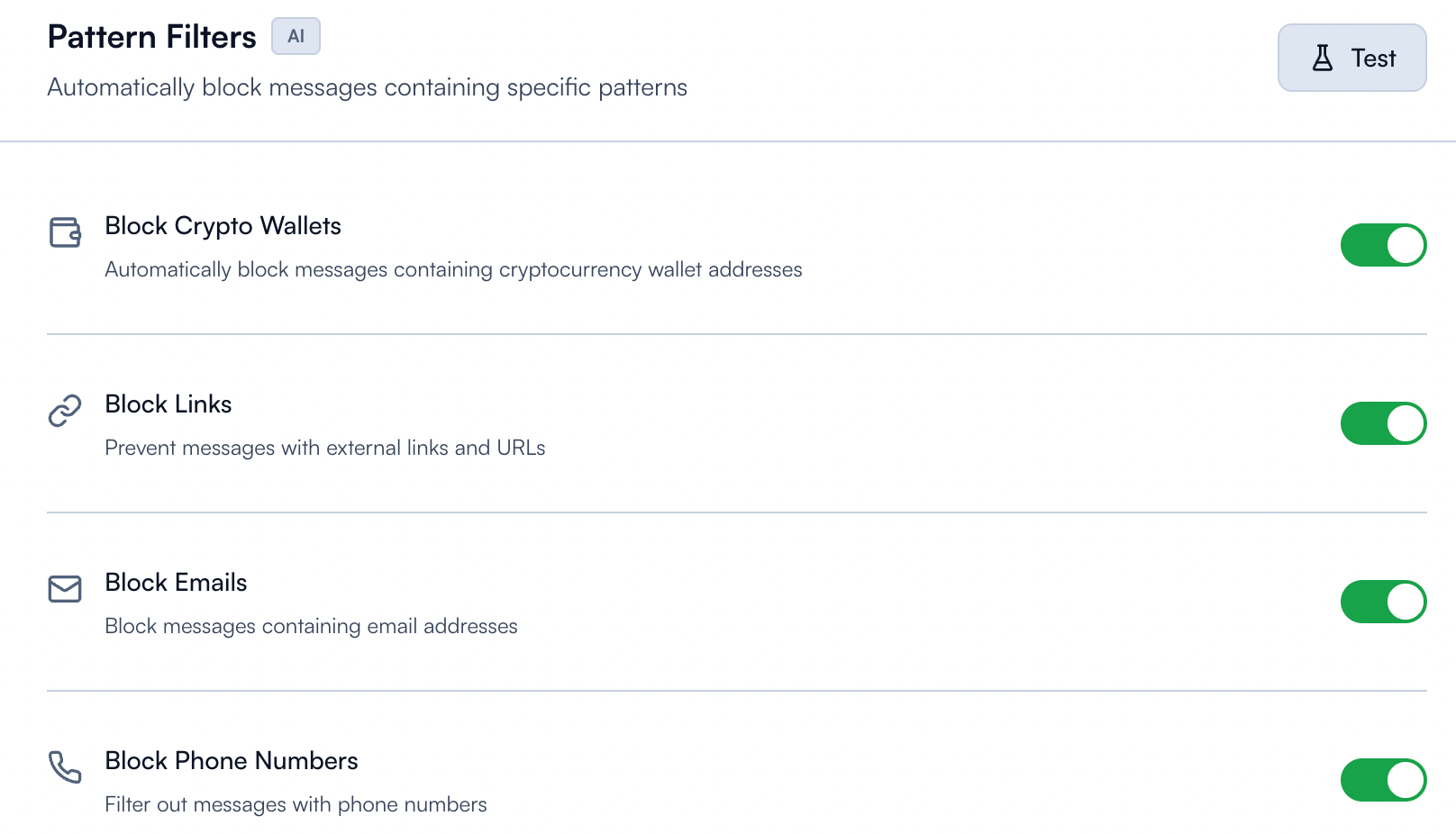
Configure Pattern Filters
In
Pattern Filters, configure the toggles you need:Block Crypto WalletsBlock LinksBlock EmailsBlock Phone Numbers
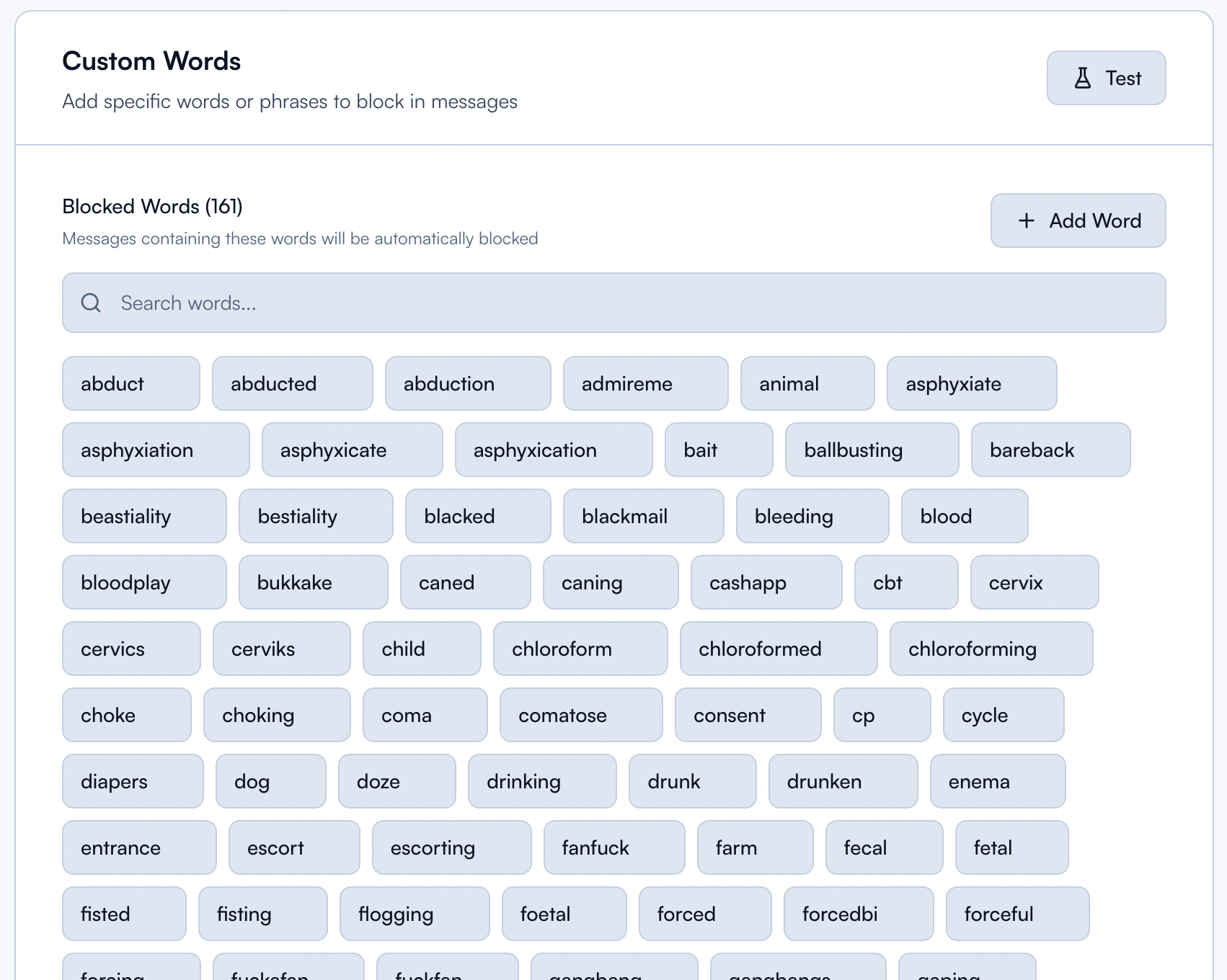
Configure Custom Words
Open the
Custom Wordssection.Add words or phrases you want to block.
Remove words you no longer need.
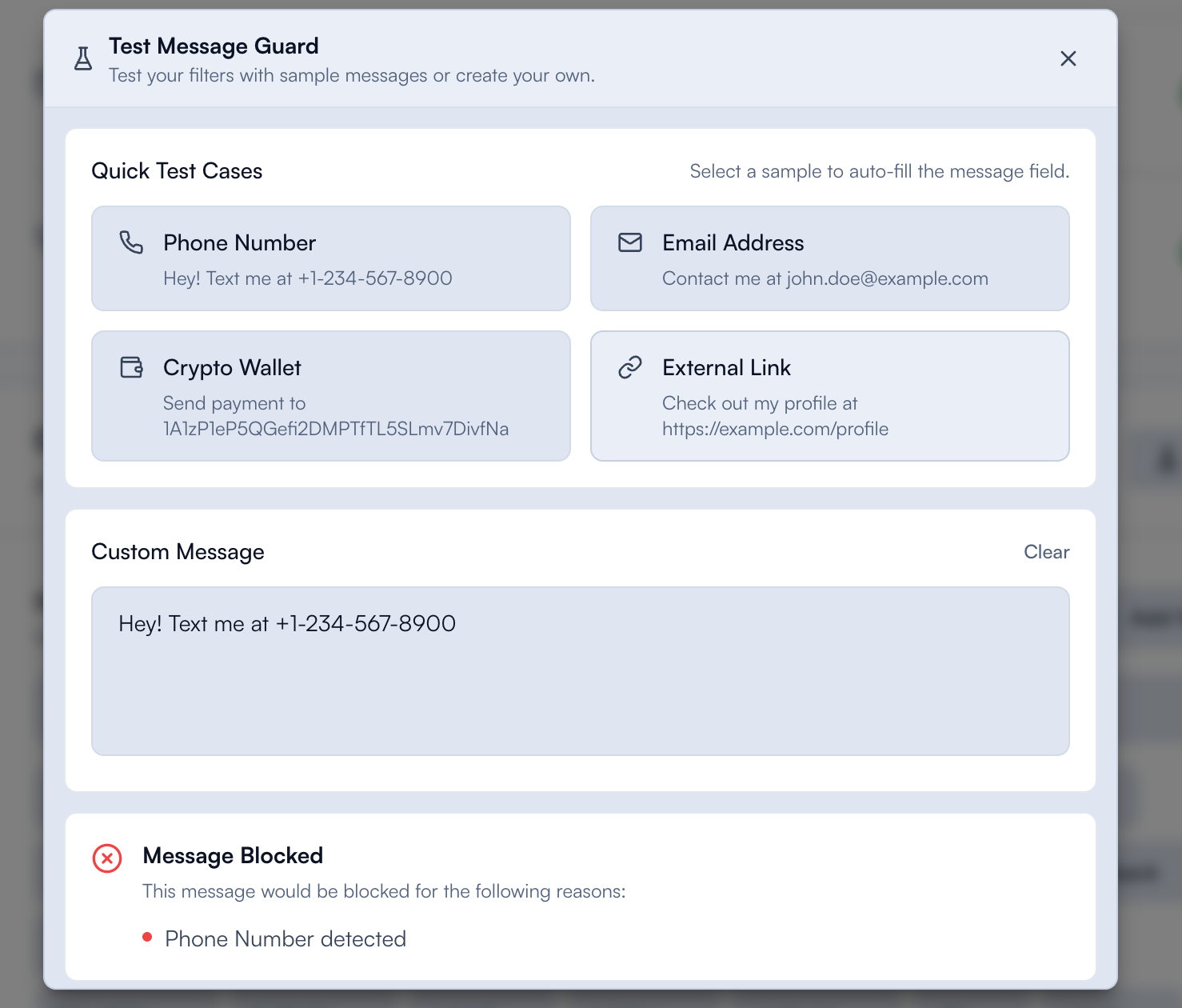
Test your rules
Click
Testto openTest Message Guard.Run a quick test case or enter custom text.
Review whether the message is blocked and which reasons matched.
Notes
In
Chats, Message Guard can block sending if a message matches active rules.If the composer shows "Message Guard unavailable", sending is blocked until fresh guard data is available.
Was this helpful?
Still need help? Ask the team