Scripts: create, manage, and use templates
`Scripts` help your team send consistent, high-quality messages faster. A script contains multiple templates that can be reused in chats.
Written By Chatseeker
Last updated 6 months ago
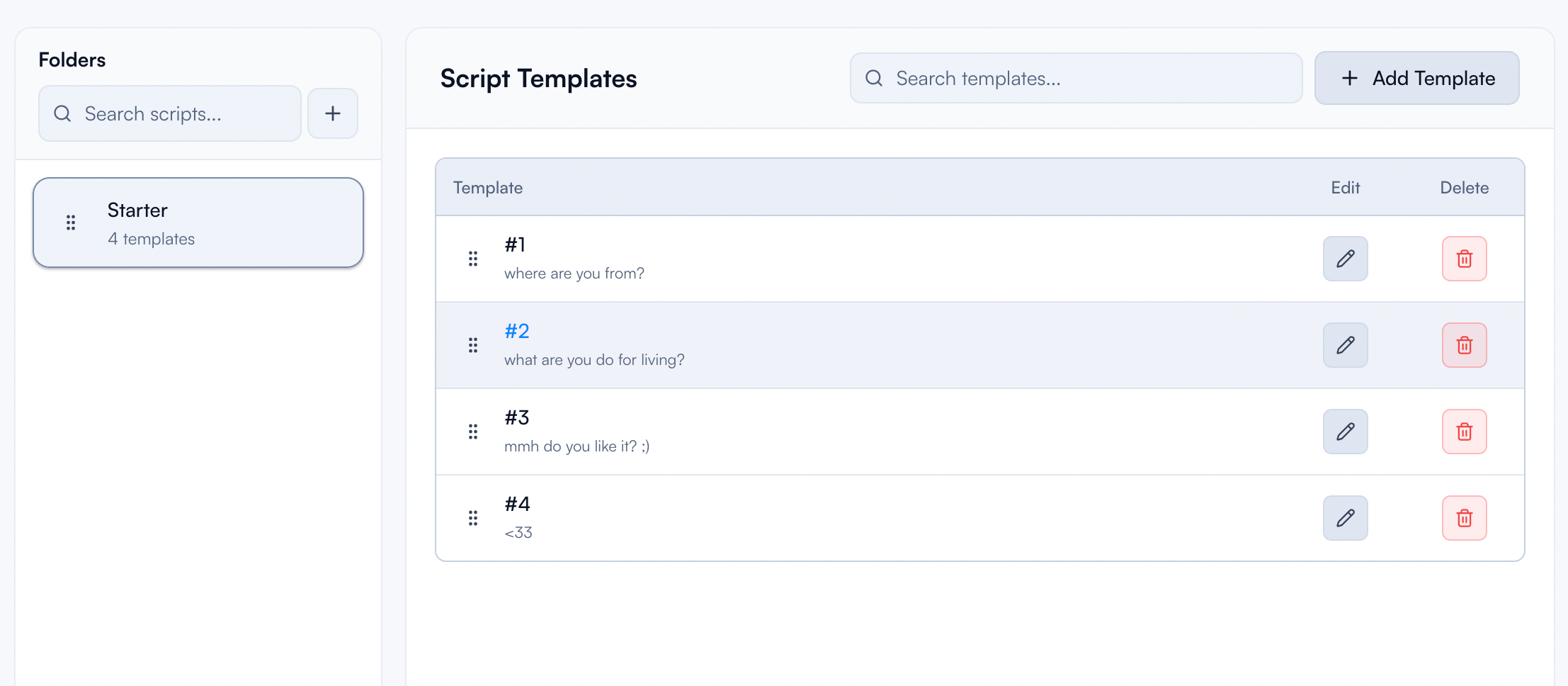
Step-by-step
Create your first folder
Open
Scripts.Click
Add New Folder.Enter a folder name and create it.
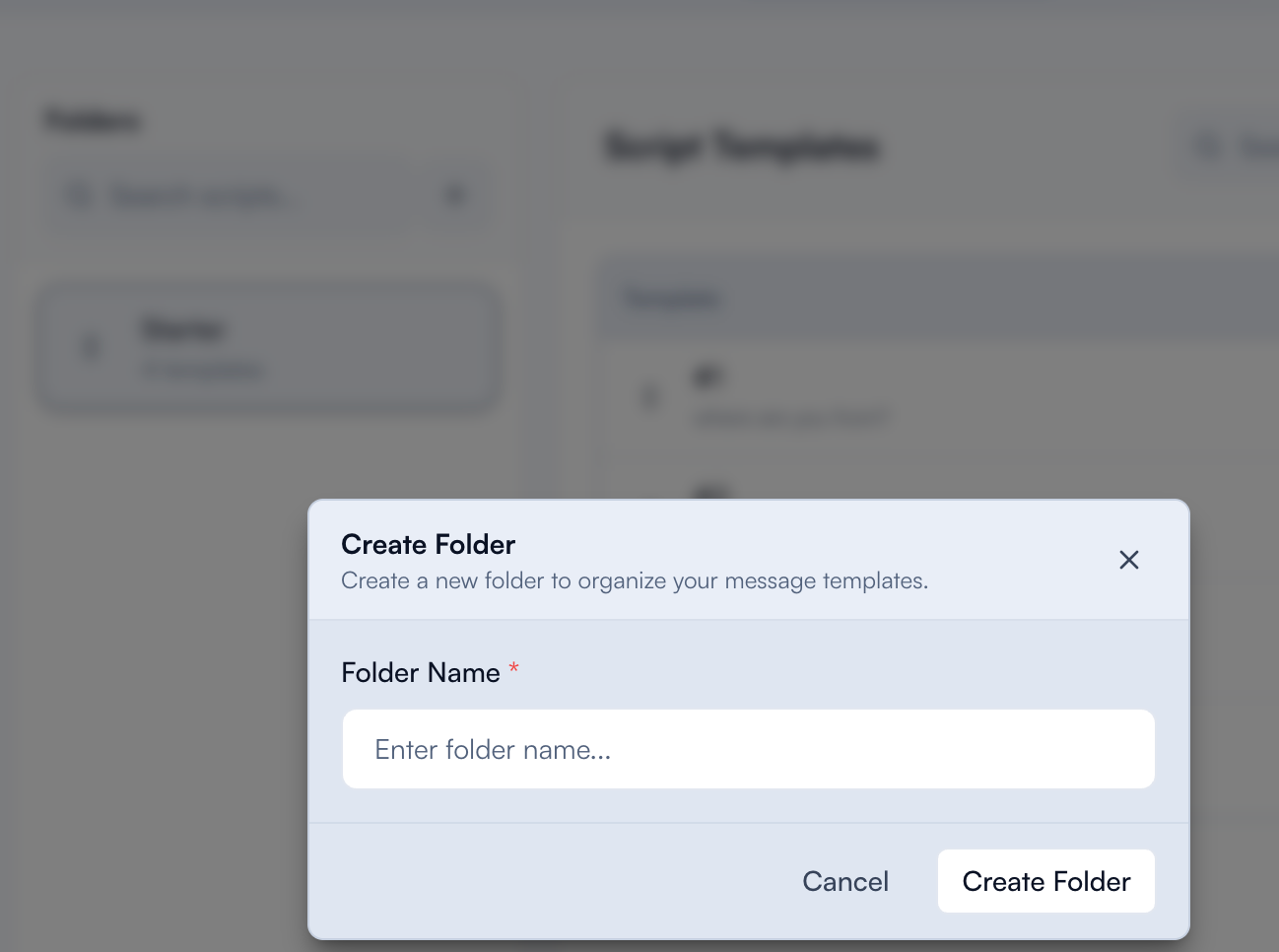
Add templates to a script
Open the script you want to edit.
Add a new template.
Set the template name.
Write the message content and save.
Edit or delete a template
In the templates table, click the template you want to change.
Update the message content and save.
To remove a template, use the delete action for that template.
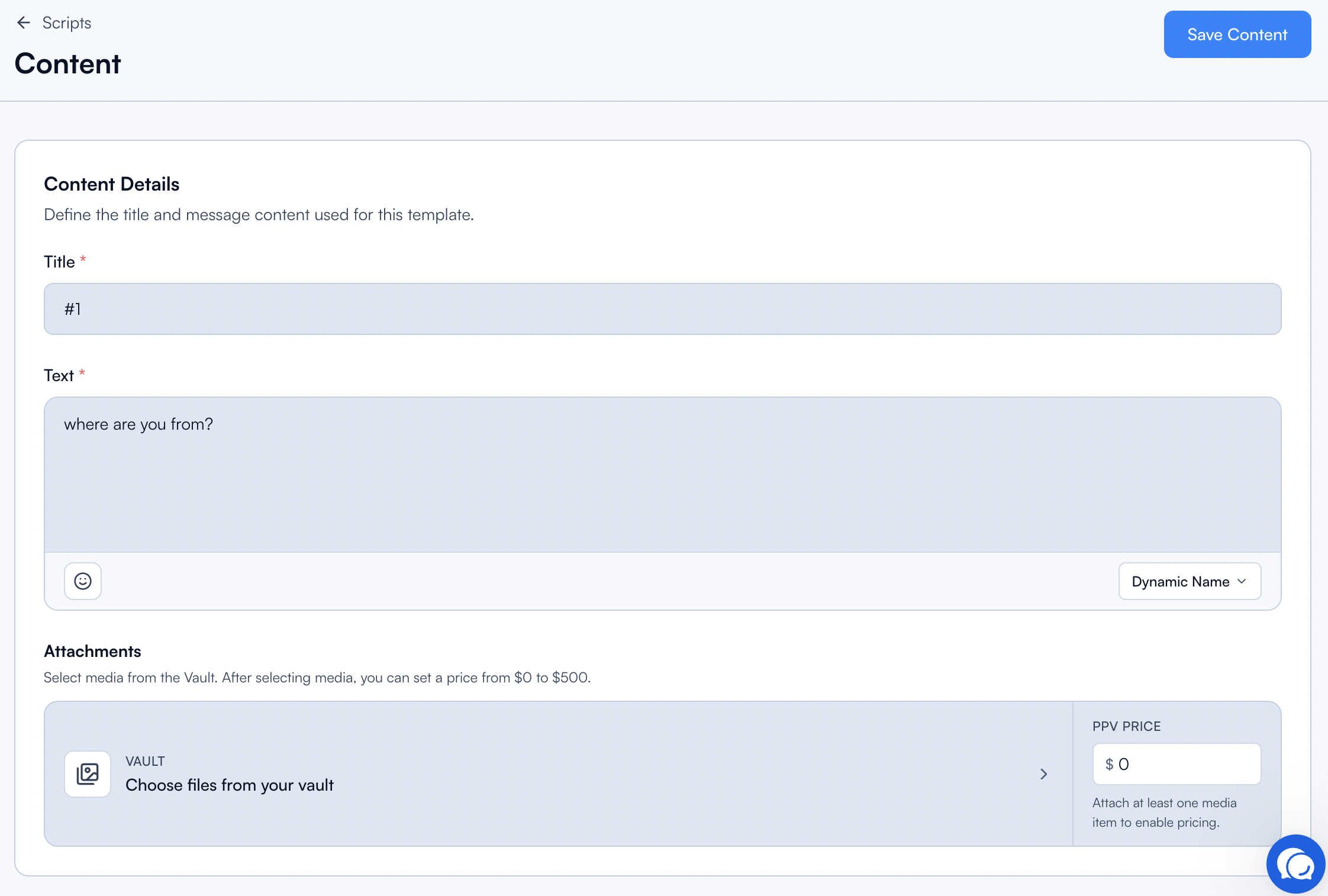
Reorder templates
You can reorder templates using the drag handle. The order helps you keep scripts organized and supports tracking in Script Metrics.
Use a script in Chats
Open
Chatsand select a conversation.In the composer, click
Scripts.Select a template.
Confirm the composer indicates a "Script message".
Send your message when ready.
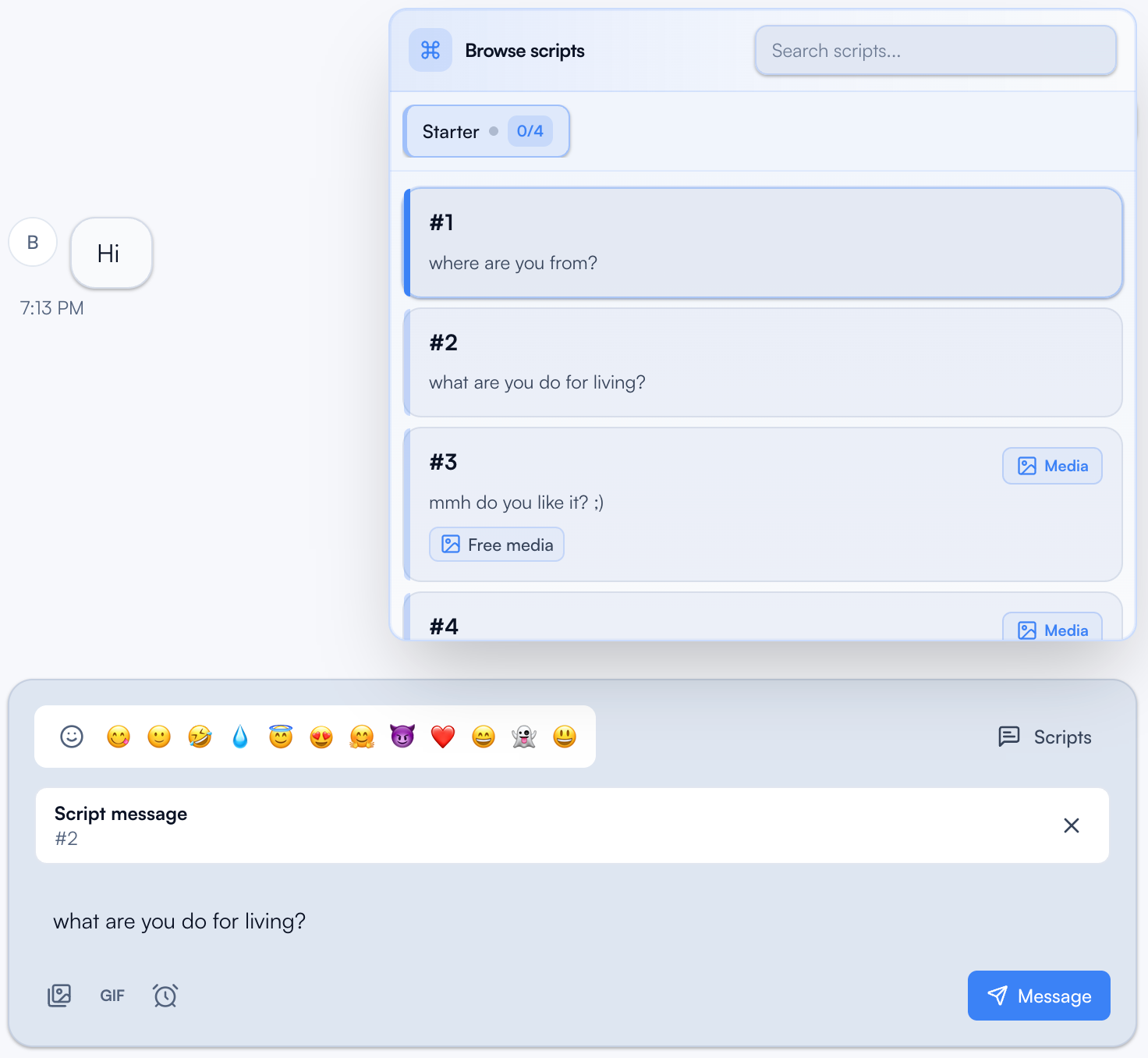
Notes
Keep template names descriptive so they can be found quickly in the suggestions list.
Review and personalize templates before sending when needed.
What's next
Next, learn how to evaluate template performance in Script Metrics.
Was this helpful?
Still need help? Ask the team