Work Schedules
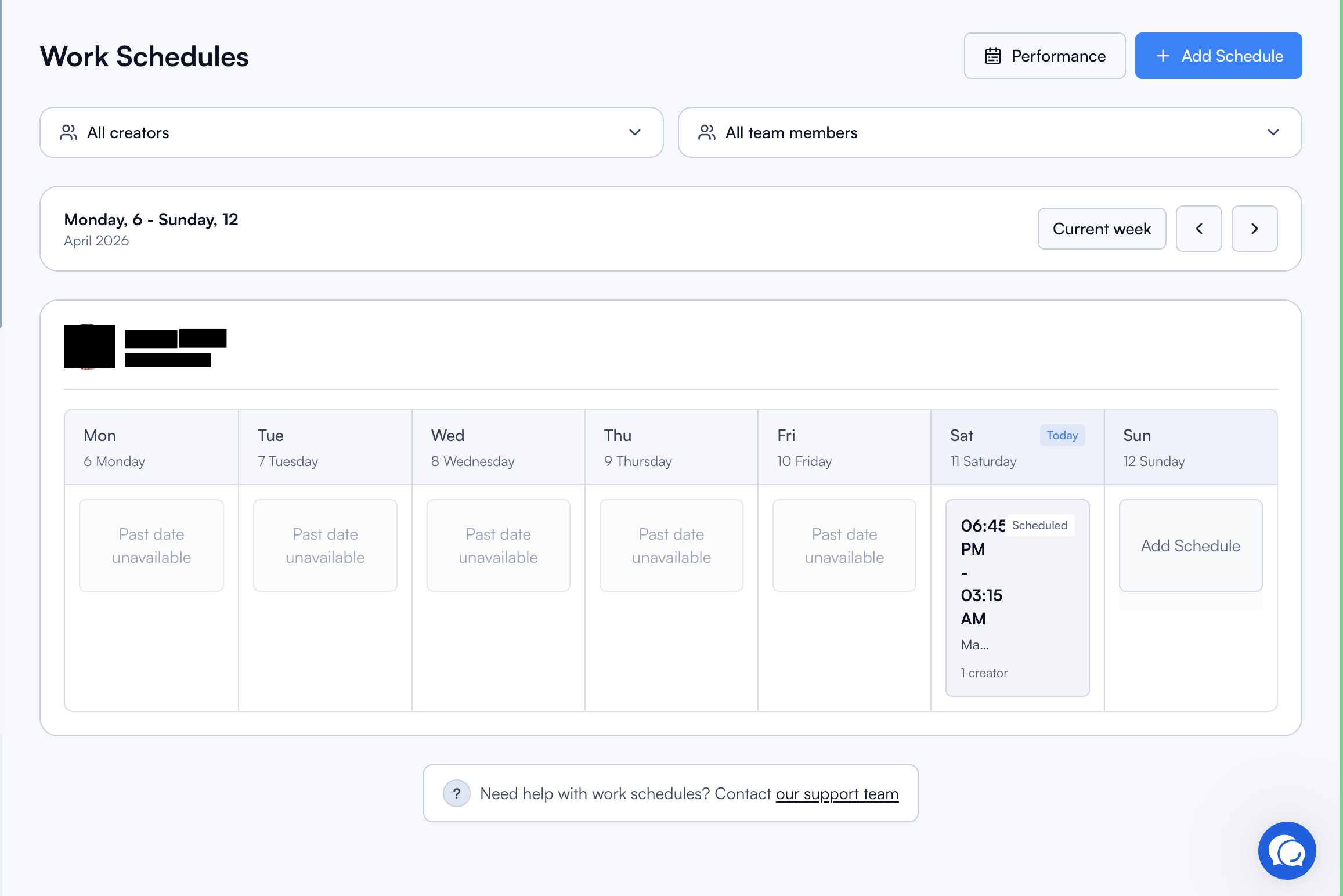
Work Schedules help you plan weekly coverage across creators and assign shifts to team members. This keeps responsibilities aligned and provides a performance history view for completed schedules.
Written By Chatseeker
Last updated 6 months ago
What Work Schedules are used for
Use Work Schedules to:
plan coverage by week
assign one or more creators to one or more team members
keep shift timing consistent for operations
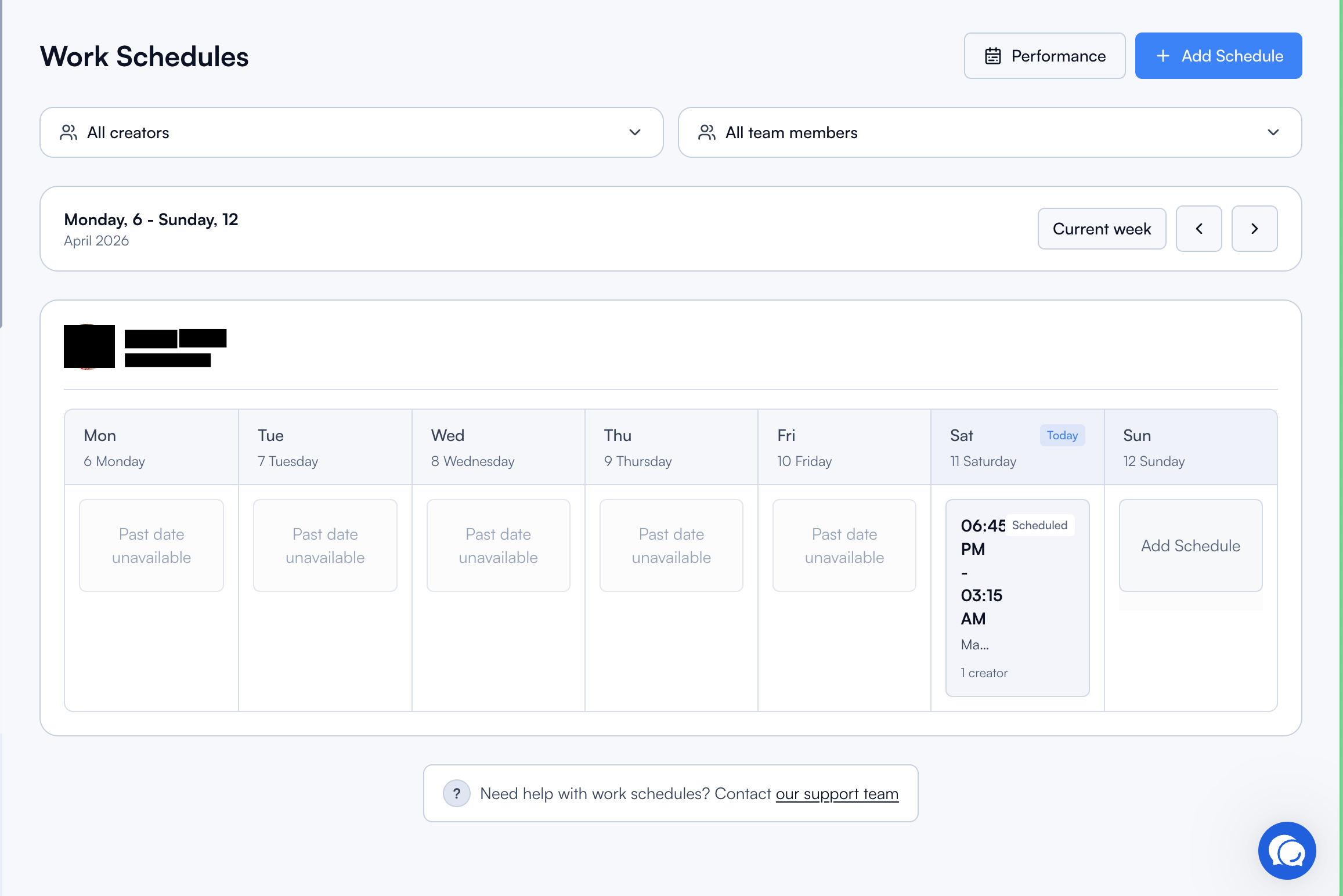
View and filter schedules
Open
Work Schedules.Use the filters:
Creators(multi-select)Team Members(multi-select)
Navigate weeks using the previous/next controls, or jump back to the current week.
Create a work schedule
Open
Work Schedules.Click
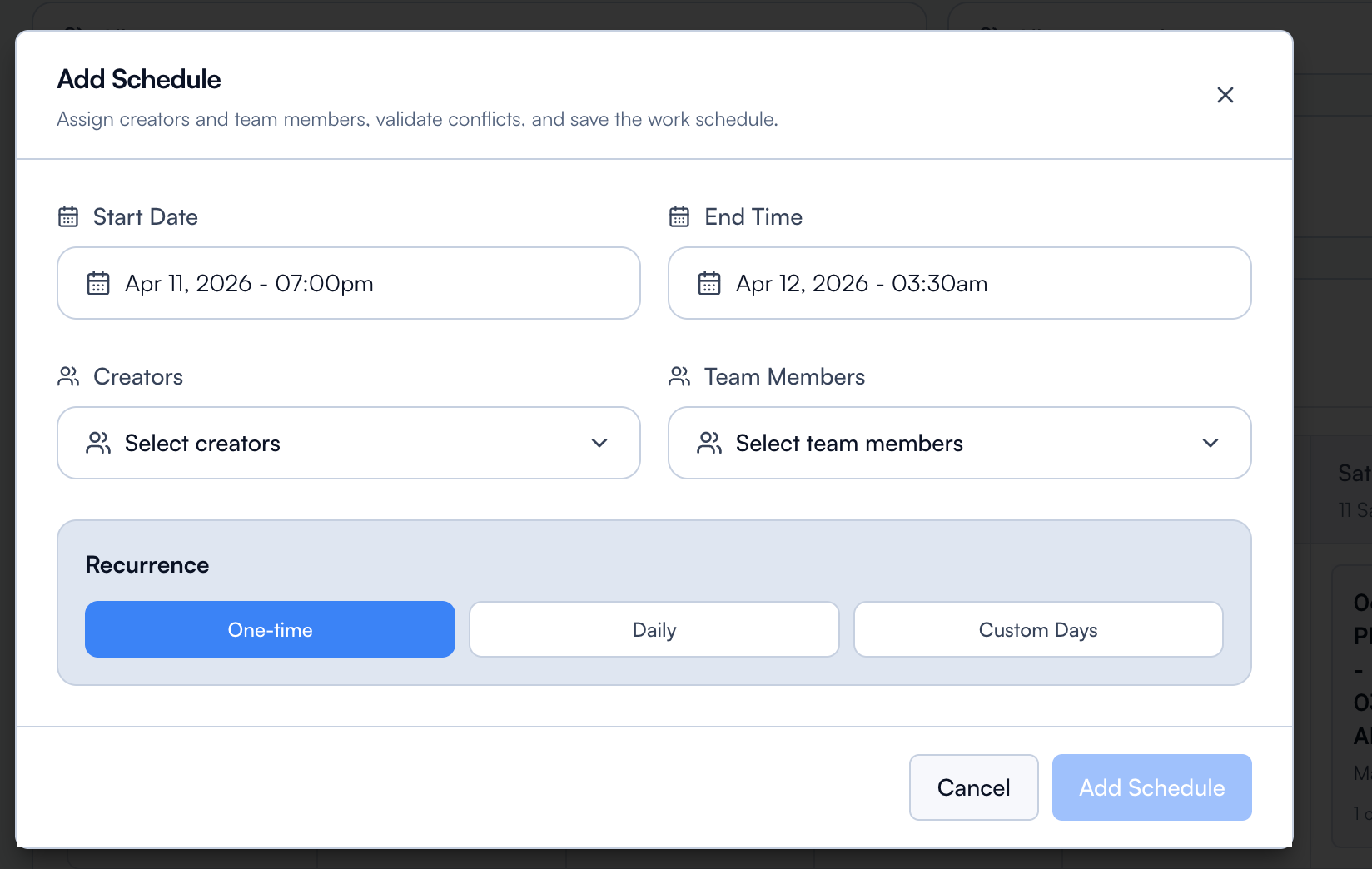
Add Schedule.Set
Start Dateand the start time.Set the end time.
If the end time is earlier than the start time, the shift continues into the next day.
Select one or more
Creators.Select one or more
Team Members.Configure recurrence:
One-time schedule, or
repeating schedule with a repeat-until date
Click
Add Schedule.
Constraints:
You cannot create new work schedules for past dates.
A work schedule duration cannot be longer than 23 hours.
Open an existing schedule
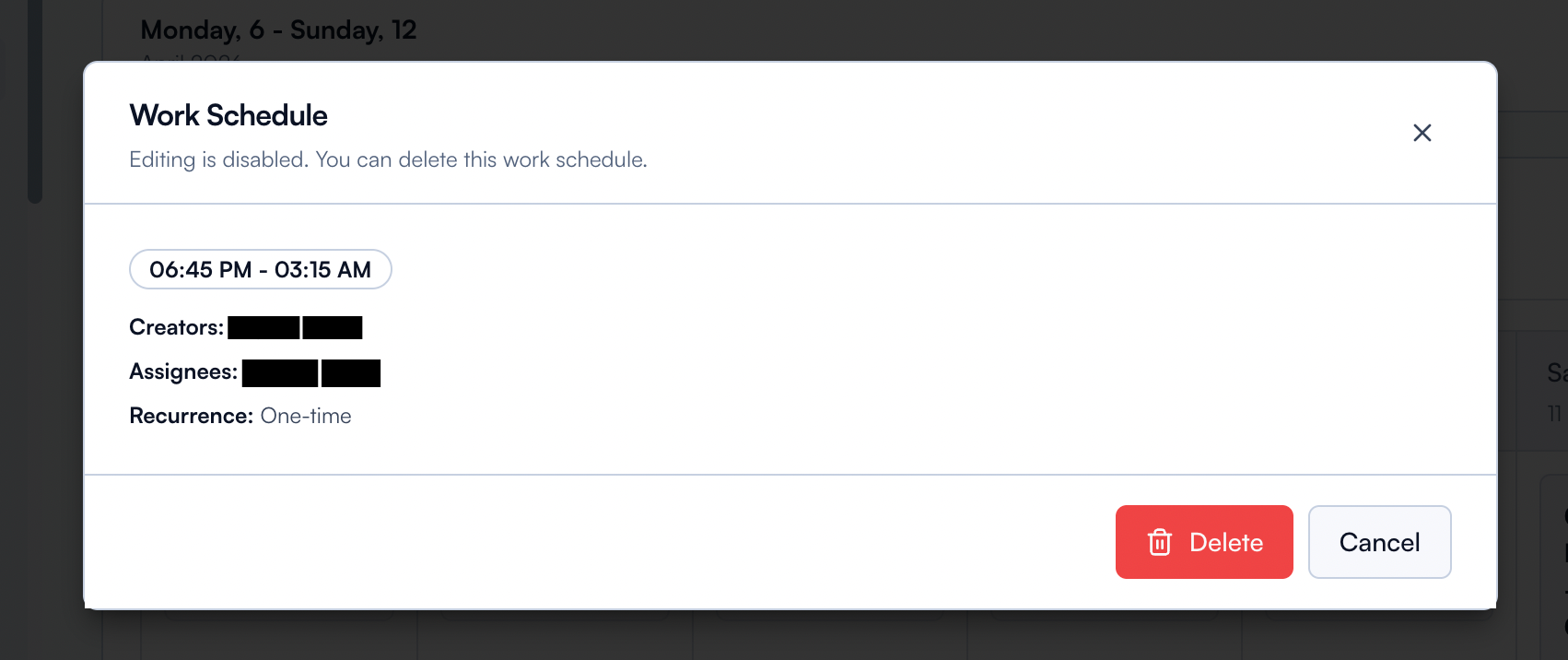
To view an existing schedule, select it in the calendar grid. In the details view, editing is disabled. You can delete the schedule if needed.
Performance History
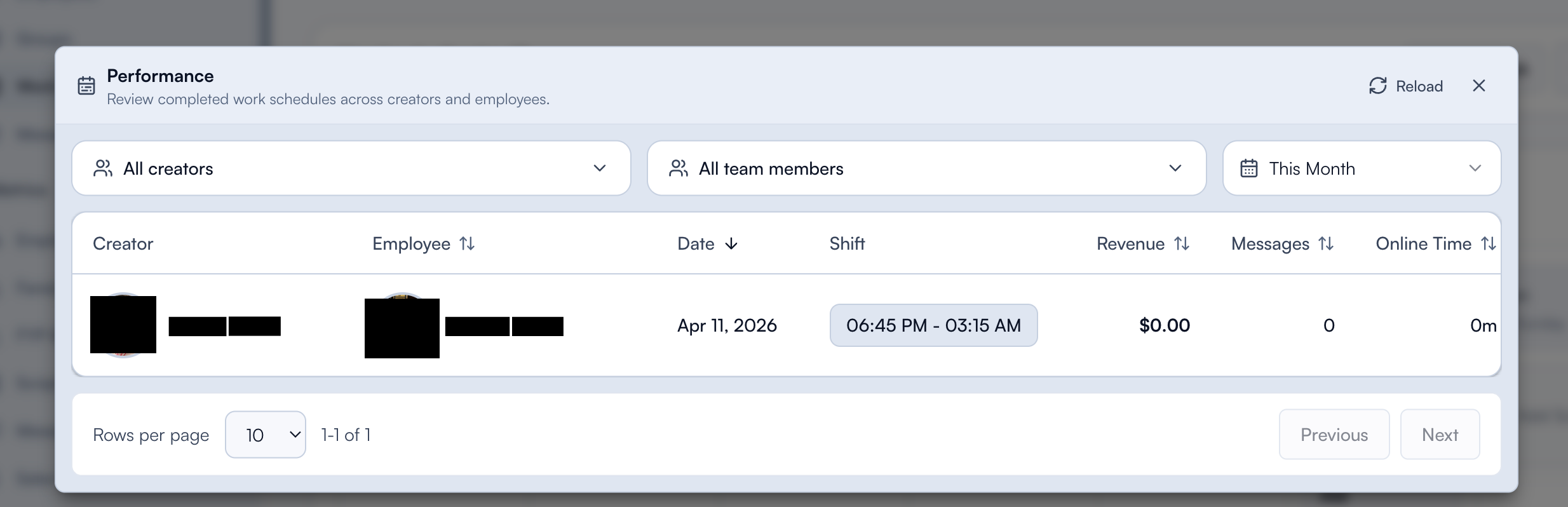
Use Performance History to review completed work schedules and creator KPI performance.
Open
Work Schedules.Click
Performance History.Filter by creators and team members.
Adjust the date range (this month or custom).
Sort and paginate as needed.
Was this helpful?
Still need help? Ask the team