Online Message Campaigns
Fans spend only a few minutes at a time on Fansly. Online Message Campaigns let you catch them in that exact window by automatically sending messages the moment they come online during a scheduled time period.
Written By Chatseeker
Last updated 6 months ago
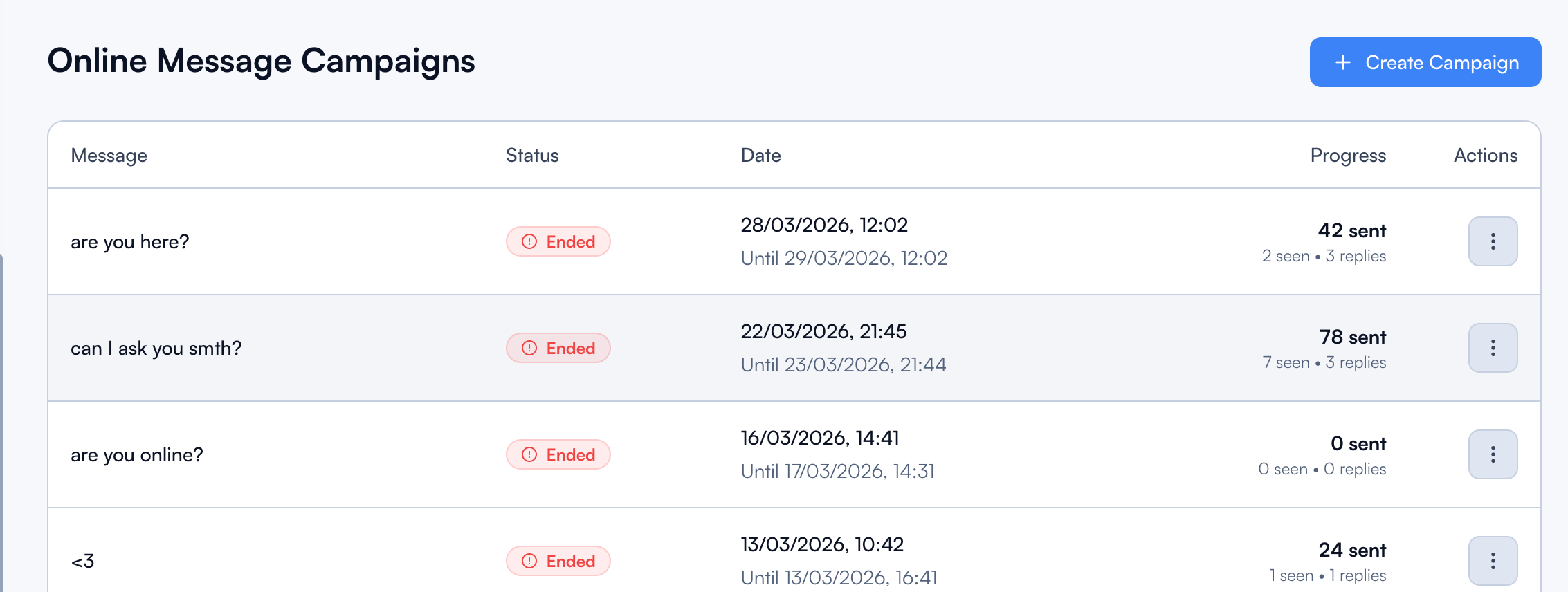
This is one of the highest-converting automations you can run. Instead of sending a mass message to everyone at once and hoping fans see it, Online Message Campaigns fire only when a fan is actually active.
What it does
Schedules messages to be sent when fans come online during your configured time period.
Supports personalization using the same dynamic name placeholders as Welcome Campaigns.
Uses targeting rules to make sure only the right fans receive the message.
Creating a campaign
Open Online Message Campaigns.
Click Create Campaign.
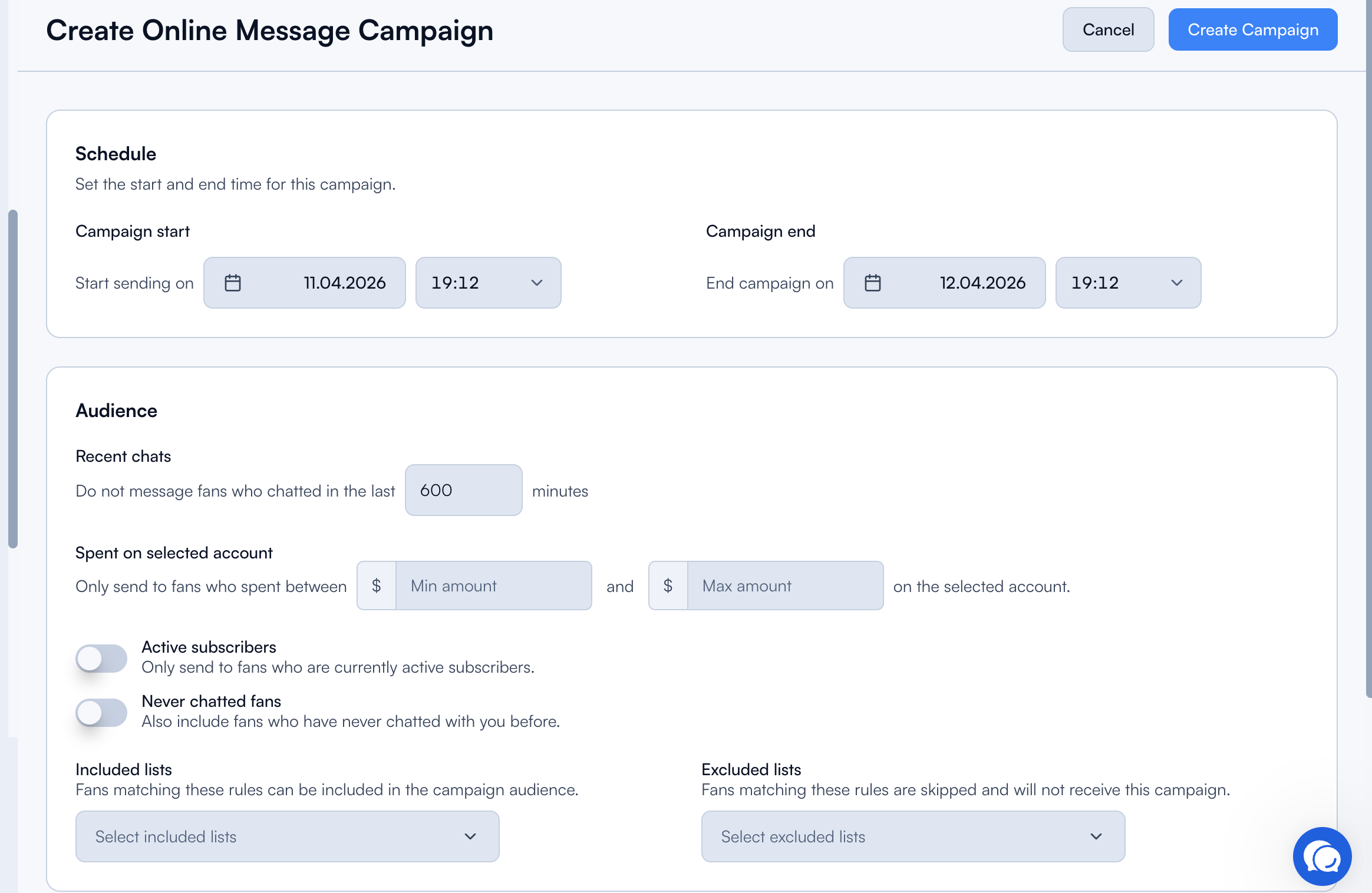
Configure the Schedule at (start date and time).
Configure End campaign at (end date and time).
Configure Targeting (see below).
Add one or more Messages using Add Message.
Click Create Campaign.
Key constraints
Campaign dates cannot be edited after the campaign is created.
Messages cannot be changed after a campaign has Ended.
Targeting
Targeting rules control exactly who receives the campaign. Good targeting is what separates a spammy mass blast from a campaign that actually converts.
Exclude Recent Chats (minutes)
Excludes fans who had chat activity within the last N minutes. This prevents automated messages from interrupting ongoing conversations your chatters are already having.
Spent on selected account
Target fans by how much they've spent on the creator:
Minimum amount
Maximum amount
Use this to send different offers to different spending tiers, for example a premium PPV to whales and a cheaper entry offer to small spenders.
Included Lists and Excluded Lists
Control targeting through your fansly lists:
A list cannot be both included and excluded at the same time.
Additional toggles
Note: Targeting can only be edited while the campaign is currently active.
Managing campaigns
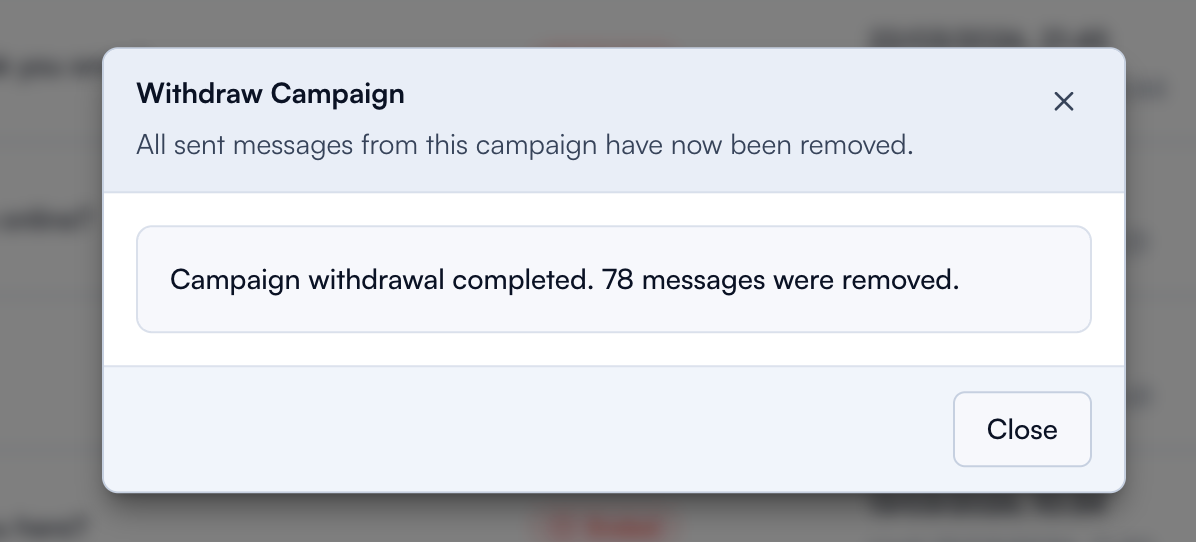
Each campaign on the Online Message Campaigns list has an actions menu. Available actions depend on the campaign's current status (Running, Waiting, Ended, or Cancelled):
Performance indicators
The campaign list shows live progress metrics for every campaign:
Good to know
Only one campaign can be active at a time. If you want to start a new campaign while another one is still active, you first need to stop the running campaign. Use Stop on the current campaign before starting or creating the next one. Use Duplicate to prepare the next one in advance so you can switch over quickly.
Use Exclude Recent Chats generously. Active conversations are more valuable than another automated message.
Combine targeting with your Spending Lists and New Fan Lists for highly specific audiences (e.g. exclude new fans who haven't been qualified yet, target only big spenders).
What's next
Learn how to use Spending Lists and New Fan Lists as targeting sources to fine-tune your campaigns even further.
Was this helpful?
Still need help? Ask the team