Spending Lists
Spending Lists let you segment your fans based on how much they've spent. Instead of sending the same message to everyone, you can group fans into spending ranges and target each group with tailored messages and workflows.
Written By Chatseeker
Last updated 6 months ago
Creating a Spending List
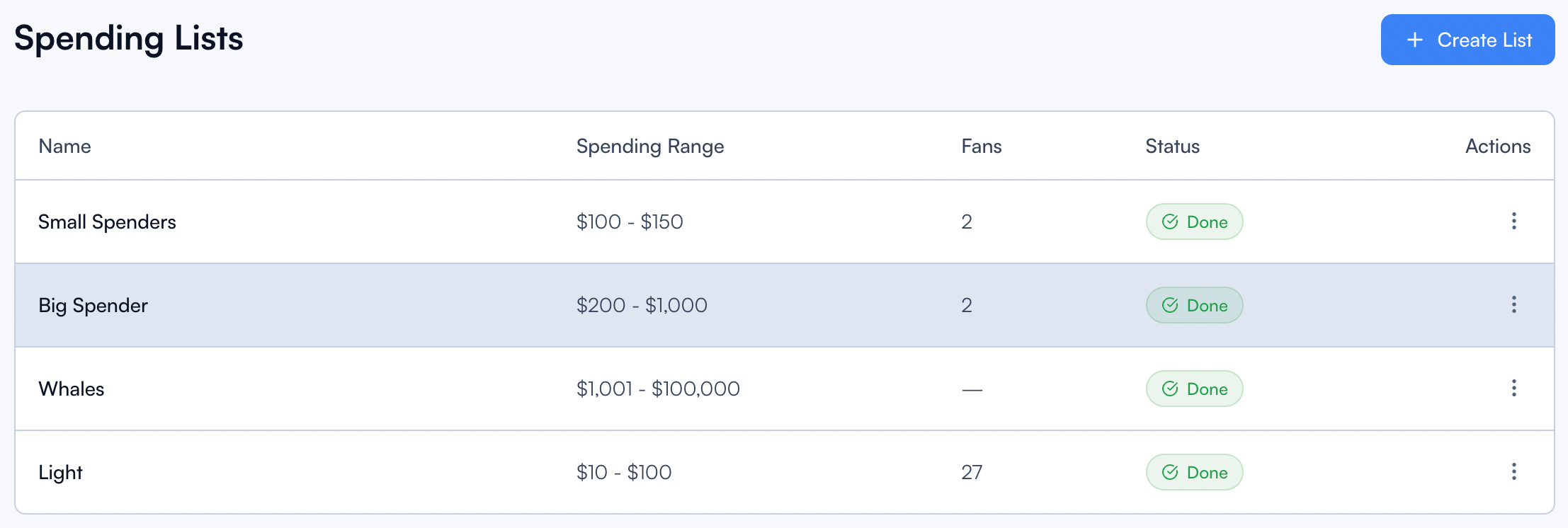
Open Spending Lists.
Click Create List.
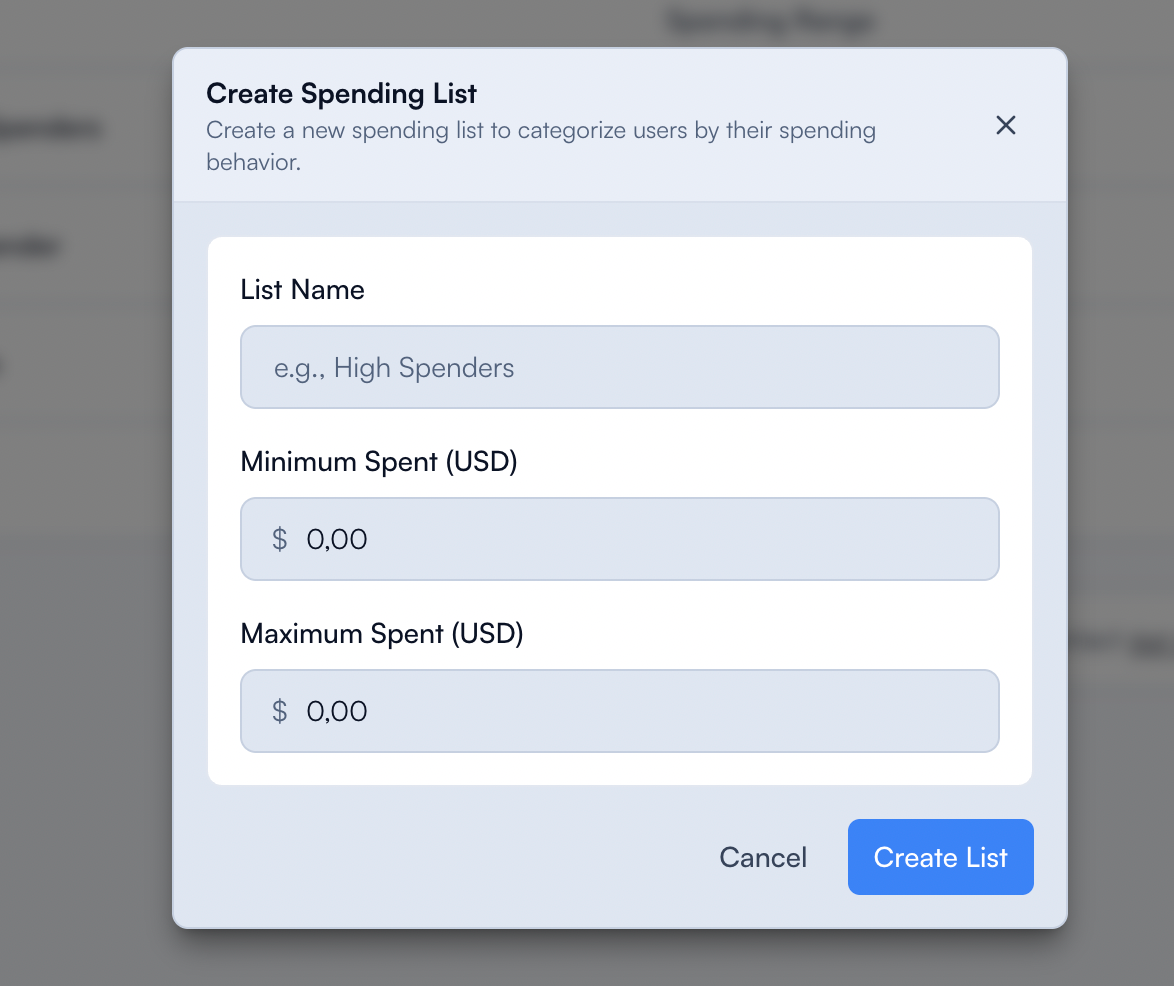
Enter a List Name that clearly describes the segment (e.g. "Whales" or "Small Spenders").
Set the Minimum Spent (USD) and Maximum Spent (USD) to define the range.
Click Create List.
Fans whose total spend falls outside your defined range are automatically excluded. Only fans within the minimum and maximum values will appear in the list.
Status
Each Spending List shows a processing status:
Example setup
A common approach is to create three lists that cover different spending ranges:
With this setup, you can use each list as a target for Mass Messages. For example, send a different PPV offer to your Whales than to your Small Spenders, or create a specific message flow for Big Spenders to move them into a higher tier.
You can create as many lists as you need and adjust the ranges at any time to match your audience.
Was this helpful?
Still need help? Ask the team